
Stock Count and Excel Import
Count your stock on screen or on a paper sheet, and use a blind count when you want an unbiased result. Approved differences are posted to stock; sheets and reports export to Excel.
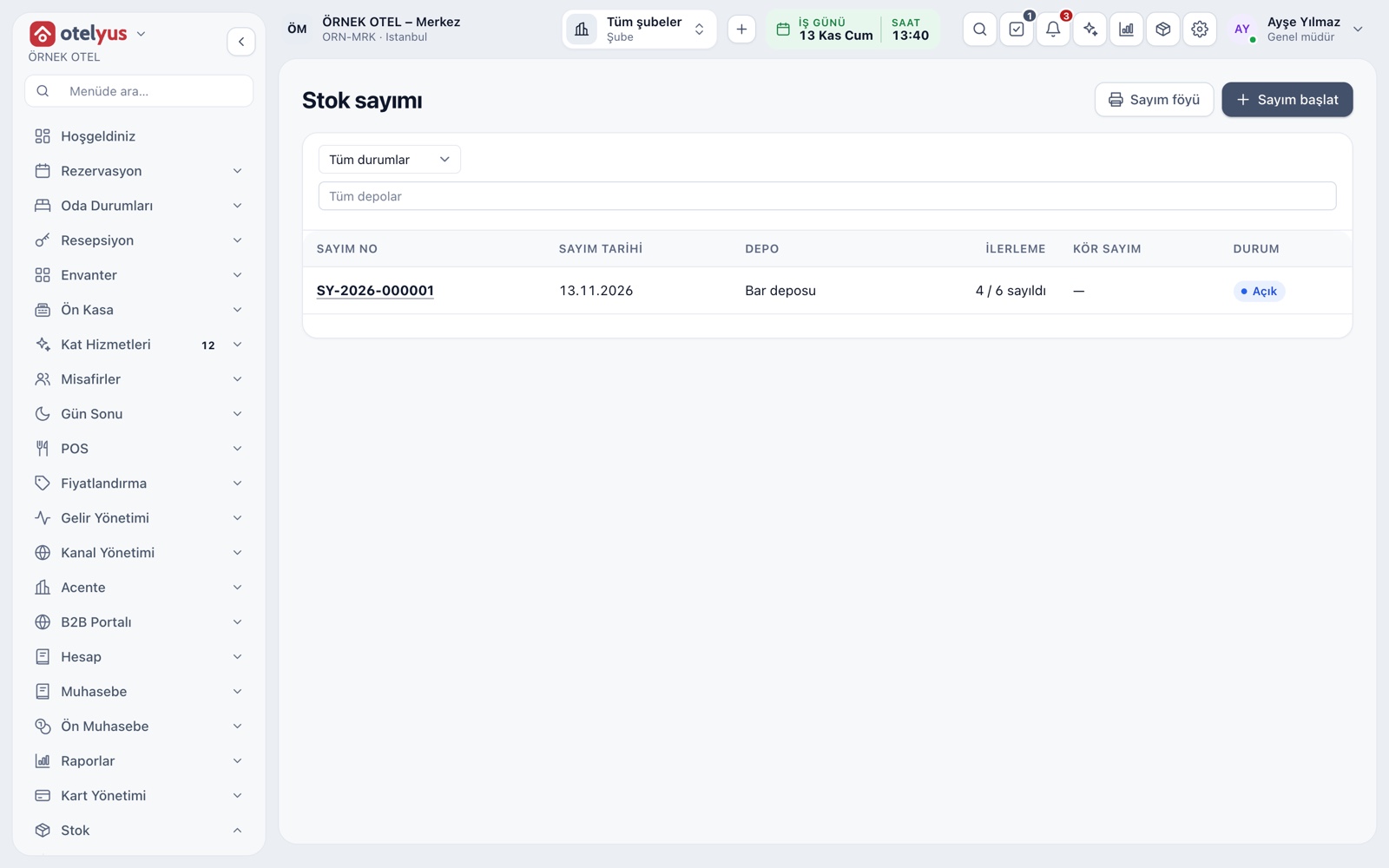
Run counts from the screen
Every count is a session: which warehouse, when, how many items have been counted and its status, all in one list. You pick the warehouse when you start. A half-finished count stays open so you can carry on later, and a cancelled count leaves your stock balances untouched.
- Filter the list by status and warehouse.
- Progress shows counted and total items.
- Count numbers are assigned automatically.
Counting on paper
If your team prefers counting on the shelf with pen and paper, print the count sheet. It lists stocked items by warehouse and category, with a blank counted column and signature lines for the counter and the checker. You enter the results on screen afterwards.
- Rows follow the on-screen order, so entering results is easy.
- Add a system balance column if you want one.
- Print it, or save it as PDF or Excel.
Blind count
In a blind count the expected quantity stays hidden from the counter until the count is approved, so the number cannot sway the result. Counted quantities are entered line by line and work well on a touch screen. Sales keep deducting stock during a count, and items that moved are flagged.
- Choose blind count when you start the count.
- You can list only the items with a difference.
- Entering a count needs its own permission.
Differences post on approval
When you approve a count, the gap between counted and recorded quantities is written to the stock ledger as a surplus or a shortage, and it cannot be undone. The difference also flows into accounting; confirm the account mapping with your accountant.
- Surplus and shortage values are totalled separately.
- Treating uncounted items as zero needs its own approval.
- Every approval is recorded under the user's name.
Efficiency report
For each item you set the surplus and shortage you are willing to accept (the tolerance). The report lists differences that exceed it in approved counts, so small deviations stay quiet and real losses stand out.
- The tolerance is set in the item's own unit.
- Shows the number and value of surplus and shortage lines.
- Open the count to review line by line.
- Only authorised users see monetary values.
Excel, CSV and PDF output
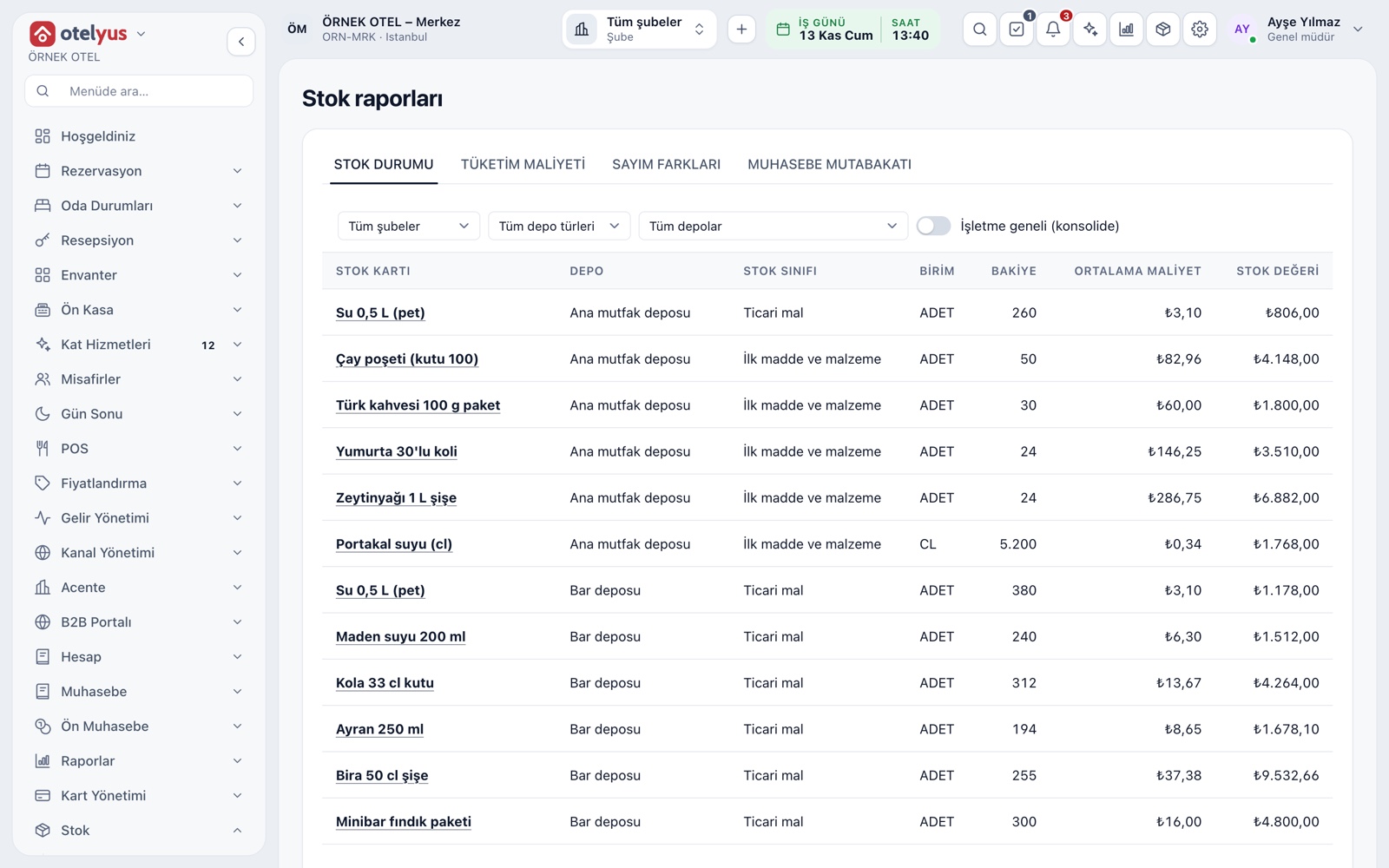
Count sheets, waste lists, recipe usage lists and stock reports can be saved as Excel, CSV or PDF, and the output follows the filter you applied on screen. For goods received without an invoice, quick stock entry gathers many lines into a single voucher.
- Headers repeat on every page and rows never split.
- Waste output covers the whole selected date range.
- Only the lines you filled in go onto the voucher.
Modules used together
Inventory Management
Stock cards, warehouses, critical stock and movements
Learn moreGoods Receipt and Warehouse Transfers
Receiving and transfers between warehouses
Learn moreRecipes and Production
Recipe definition and recipe production voucher
Learn moreReports and Analytics
Occupancy, revenue, sales, stock cost and tax support summaries sit in one centre, each as a report tied to its own permission. Reports can be filtered, exported and scheduled by email.
Learn moreFrequently Asked Questions
What is a blind count?
A count where the expected stock quantity stays hidden until the count is approved. The counter is not influenced by the number, and the difference is worked out at approval.
What if items are sold during a count?
Sales keep deducting stock. Items that moved are flagged, and at approval the difference is calculated against the current balance.
Can I undo an approved count?
No. The difference movements written at approval cannot be undone. If something is wrong you post a manual correction, and every movement stays visible in the stock ledger.
What happens to items I did not count?
They keep their balance. At approval you can choose to treat uncounted items as zero, which asks for a separate confirmation.
Can I export the count sheet to Excel?
Yes. You can print it, or save it as PDF, or as Excel or CSV with an empty counted column.
Meet Stock Count and Excel Import
Let us call you for a live walkthrough, or try it free for 1 month.