
Kitchen Display and Kitchen Groups
An order goes to the right station by its category: hot kitchen, cold kitchen or bar. The kitchen display shows each ticket with a timer and color thresholds, and a finished order tells the server.
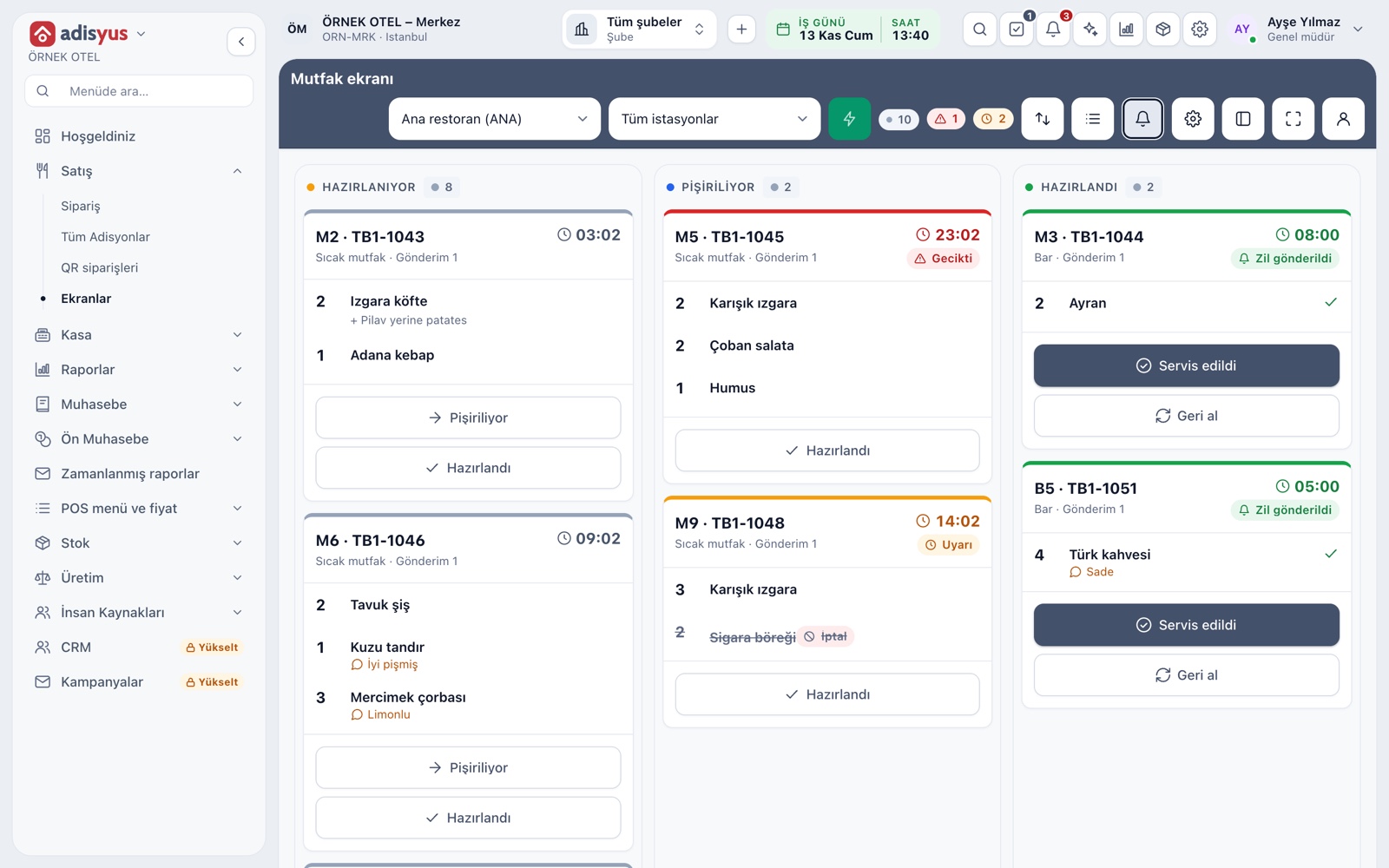
Kitchen display (KDS)
The kitchen display shows the open tickets of a POS outlet and the chosen station in columns: Preparing, Cooking, Ready. A card carries the table, items, options and notes. The cook who presses the stage button moves the card to the next column. The screen opens full screen on a separate device and updates by itself.
- All stations can also be followed together.
- The consolidated items list gives total quantities waiting.
- A cancelled line shows struck through with a Cancelled badge.
Prep stations
You define your kitchen the way it really is: hot kitchen, cold kitchen, bar. Each station serves one or more POS outlets. You choose how it works: tickets show on screen, print, or both.
- One POS outlet can have several stations.
- A station can be limited to the lines of one department.
- A single printer or a printer group is given as the printer.
- An unused station is archived.
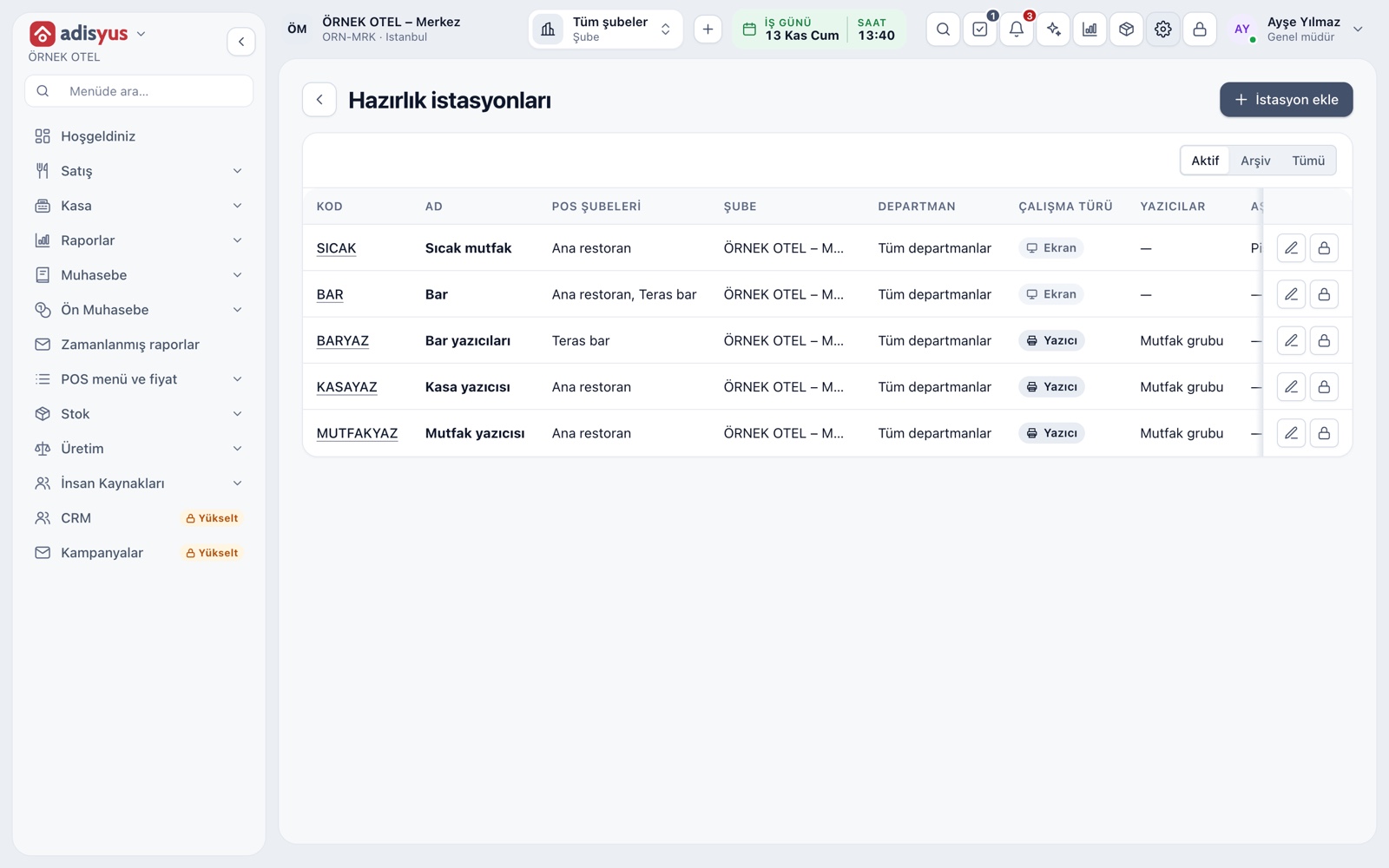
Which station an item goes to
Routing comes from the item's category: you assign a station to a category and its items land there. For an exception, a different station is chosen on the item card. A single check then spreads across stations; soup goes to the hot kitchen and drinks to the bar.
- If an item has no station, its category's station is used.
- Options and item notes carry to the ticket as they are.
- An item can be set never to show on the kitchen display.
Timers and delay colors
Each card shows the order's waiting time running. Past the warning threshold the card turns yellow, past the critical threshold red with a Late badge. You set the thresholds in minutes per POS outlet. The summary at the top gives waiting, warning and late orders at a glance.
- A new order stands out for a while with a New badge.
- Status is shown by Warning and Late labels, not by color alone.
Course firing
At tables with several courses you do not want every line to reach the kitchen at once. The server adds items with Hold until fired; they show on the kitchen display as Waiting for fire and are not prepared until the fire command. The main course comes after the starter.
- Course firing is switched on or off in POS settings.
- The fire command is given with the Fire button on the check screen.
- Each send is a time-stamped group on the check.
Ready bell and served step
When the cook marks Ready, the card moves to the Ready column and, if the setting is on, a ready alert sounds on the server and till screens. If the Served step is on, the server or kitchen records service by pressing the card; there is an Undo button if pressed by mistake.
- How long ready cards stay on screen is set per outlet.
- Ready and Served states show on the check lines.
Per-device layout and sound
The hot kitchen's screen and the bar's screen do not have to be the same. In settings you choose text size, column count, order sequence and content for that device. The new-order sound and the ready bell are switched on or off separately.
- Text size has four steps.
- Preferences affect only that device.
- The Reset to default button clears device preferences.
Modules used together
Checks and Order Entry
Item entry, options, comps, split and merge bills
Learn morePrinters and Receipt Design
Printer roles, routing rules and receipt templates
Learn moreRestaurant Settings
Business day start/end, notifications, display and general settings
Learn moreMenu and Product Management
Categories, products, photos, favorites and sales status
Learn moreStock and Recipe Costing
Recipe-based costing, stock counts and waste tracking
Learn moreFrequently Asked Questions
Do I need to buy a separate device for the kitchen display?
No. The kitchen display is a page that opens in a browser and runs full screen on any device with a browser. A kitchen that wants no screen can work with printers only.
Can I manage the bar and the kitchen separately?
Yes. Each is its own station. Items go to the right station by category, and each station can have its own screen, printer and stages.
How are delay times set?
Under Settings > POS, the warning and critical thresholds are entered in minutes per outlet. A different time can also be chosen for one kitchen display.
Is the kitchen slip printed automatically?
At a printer-type station the slip prints when the order is sent. If you switch on manual printing, the slip comes out on request.
Meet Kitchen Display and Kitchen Groups
Let us call you for a live walkthrough, or try it free for 1 month.