
Menu and Product Management
Categories, item cards, photos, favorites and price lists come together in one menu. You define an item once, and it reaches the order screen and QR menu of the POS outlets you choose in the same order.
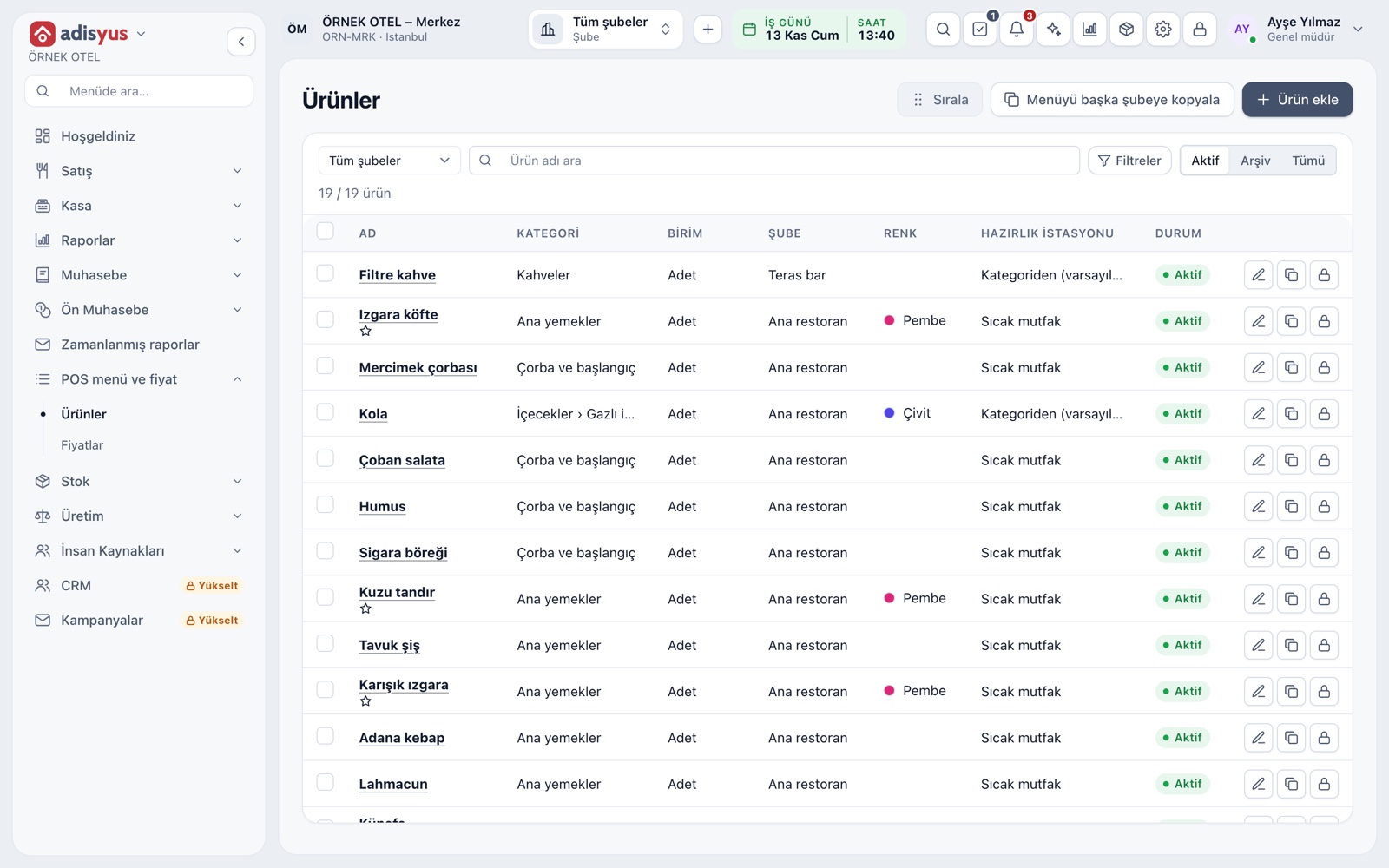
The item card
The item list filters by category, outlet and status and searches by name. The card holds name, category, unit, VAT class, photo, color and favorite mark, prep station, barcodes and option groups. A photo is resized automatically before it is uploaded.
- Favorite items go to the Favorites tab of the order screen.
- Up to 10 barcodes per item; search also works by barcode.
- An item can be copied; an unused item is archived.
- Price is not set on the card but in price lists.
Category structure
Categories are the backbone of the menu. You open sub-categories under a main category, up to two levels, for example Drinks and Soft drinks. A category can carry a default VAT class and prep station, and an item created in it inherits both.
- An item cannot be added without a category.
- A category's VAT class can be changed on the item.
- Category and item order is set by drag and drop.
Price lists
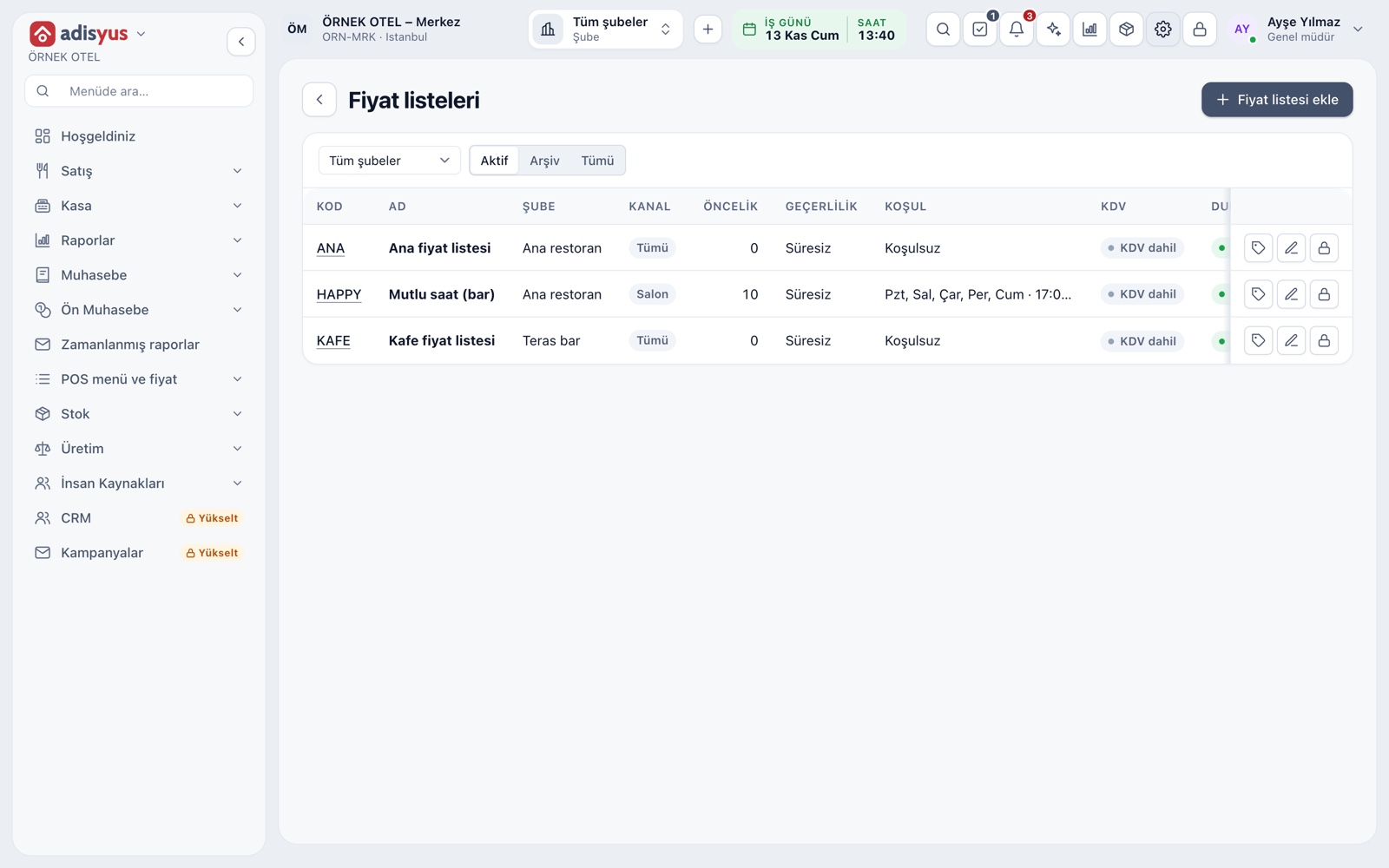
A price is written to a price list, not to an item. A list is tied to an outlet and a channel: Dine-in, Delivery, Online or All. It has validity dates, days of the week and a time range, so a lunch menu, a weekend price or a happy hour runs on the same items with different prices.
- The higher-priority list in the same scope applies first.
- A list carries its own currency and VAT-inclusive or exclusive status.
- An empty condition is always valid.
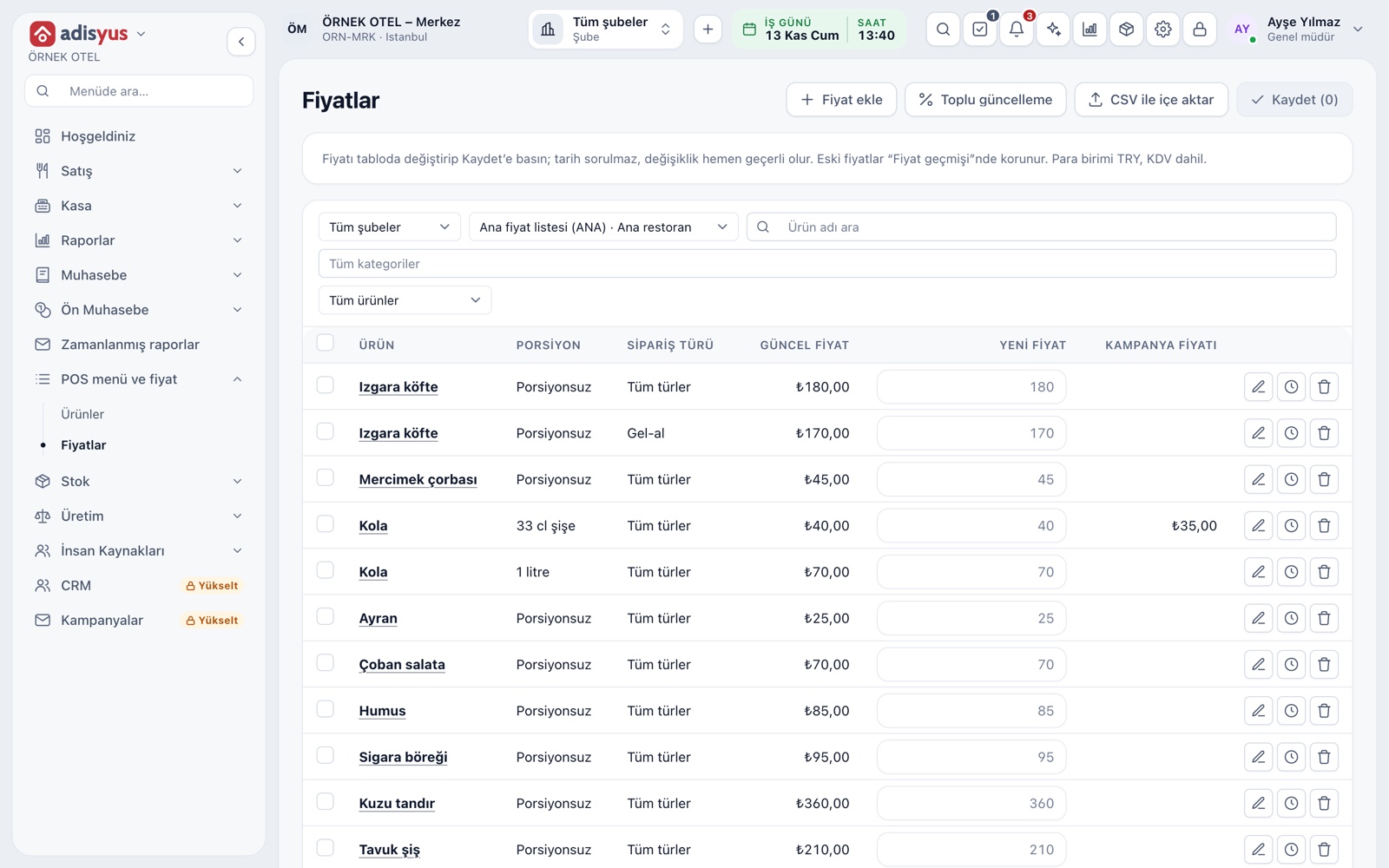
Price table, bulk update and CSV
The Prices screen shows items with their portion and order type in one table. You type a new price and press Save; old prices are kept in history and old checks do not change. For hundreds of items, a CSV saved from Excel updates prices and items in bulk.
- Bulk update raises or lowers by a percentage or an amount.
- Rounding goes to the cent, 0.10, 0.50 or the whole lira.
- Old and new prices are previewed before applying.
- If a CSV has a single error, no row is applied.
Sales status: open, close, sold out
When an ingredient runs out you do not need to delete the item from the menu. On the order screen, press and hold the item tile and choose Close for sale; a closed tile cannot receive orders. For stock-tracked items the tile can also warn with a Sold out badge.
- Open for sale reopens the item the same way.
- This action needs its own permission.
- There is no deletion; an unused item is archived and past checks stay intact.
Copying the menu to another outlet
When you open a new outlet you do not rebuild the menu. The source outlet's categories, items, option groups, combos and price lists are copied to the target outlets, with recipes and prices too if you want. Items already in the target are skipped and shown in the result table.
- Several target outlets can be selected at once.
- You can also copy selected items one by one.
Modules used together
Modifiers and Option Groups
Single/multiple choice, extras and removed-ingredient groups
Learn moreUnits and Portions
Full, half, one and a half, piece, kilogram
Learn moreVAT Rates
Tax groups and product-level VAT
Learn moreSmart Digital Menu
Order from the table with a QR menu
Learn moreKitchen Display and Kitchen Groups
Station-based kitchen display (KDS) and preparation times
Learn moreFrequently Asked Questions
How do I choose which outlet sells an item?
You add the item once and select the POS outlets it sells in; it appears on those outlets' menus automatically.
Why is the price not on the item card?
Because the same item can sell at different prices by channel, time or outlet. Prices are written to lists; history is kept and old checks are not affected.
Do I raise prices one by one?
No. A bulk increase by a percentage or an amount applies to selected rows or all filtered rows, the result is rounded and previewed before you save. CSV import is another option.
Can I delete an item?
Items are archived, not deleted. An archived item is not used in new sales or on the menu, but past checks, reports and stock records stay intact, and you can restore it any time.
Meet Menu and Product Management
Let us call you for a live walkthrough, or try it free for 1 month.