
Multi-branch and Offline Mode
You manage several POS outlets under one business. Each outlet has its own floor, terminals and settings; users work only in the outlets they are assigned, and reports and stock open up across the business.
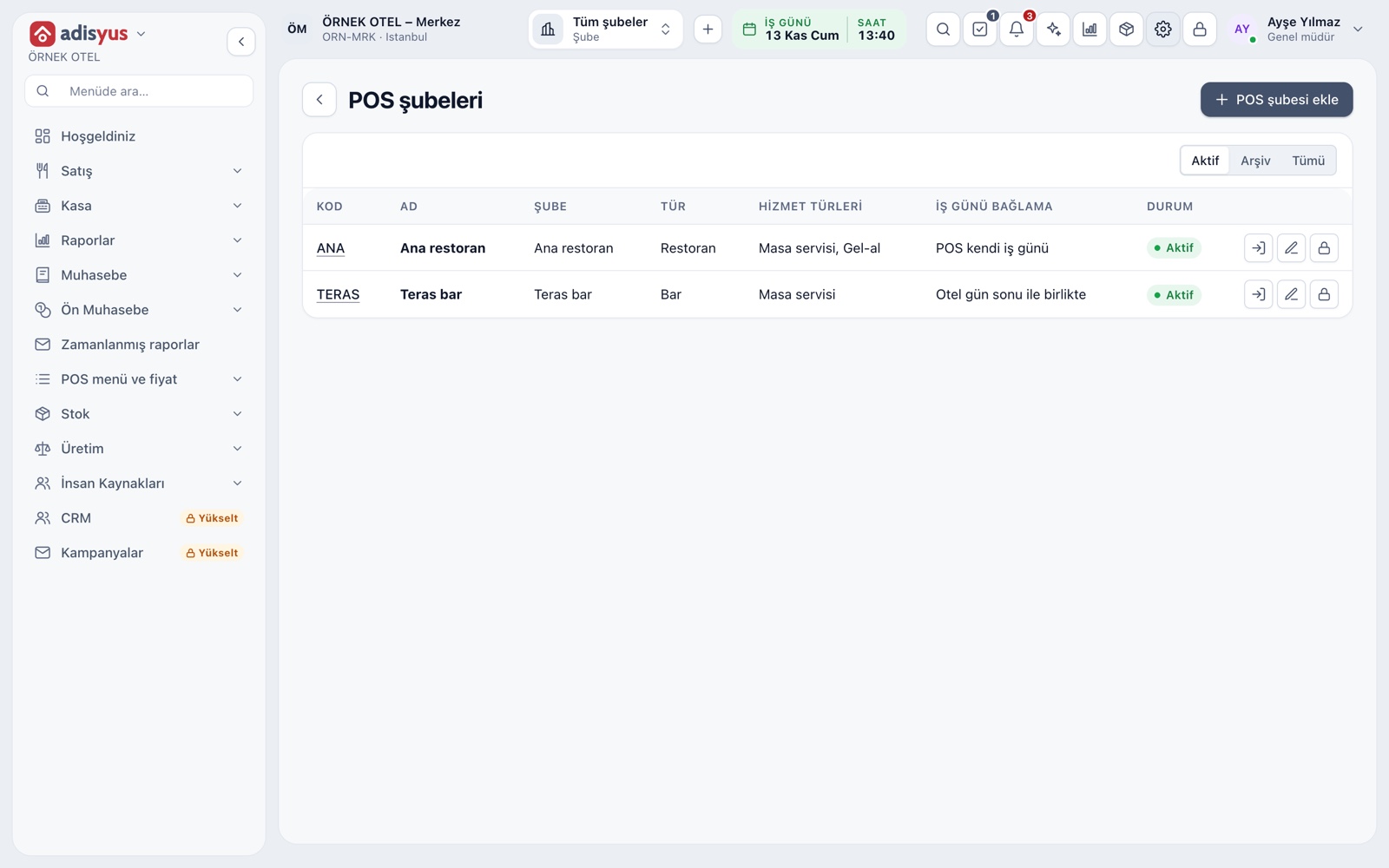
Business, branch and POS outlet
Under the business sit branches, and under a branch sit POS outlets. An outlet can be a restaurant, cafe, bar, pastry shop, quick service, room service or delivery kitchen, each with its own floor, tables, stations, terminals and service charge rule.
- The type sets defaults: a cafe needs no kitchen station, a pastry shop no dining room.
- Service types are chosen per outlet: table, takeaway, delivery.
- A separate legal entity (name, tax number) can be attached to a branch.
- A branch is archived, not deleted, and can be restored.
Permissions by outlet and the outlet switcher
A user is assigned the POS outlets they work in; they cannot see or act in unticked ones. Managers and owners see every outlet. The switcher in the top bar moves between a single outlet and All outlets.
- A server or cashier sees only the tables and till of their outlet.
- One user can be assigned to several outlets.
- A manager follows all outlets in one session.
Each outlet has its own setup
Floor and tables, prep stations, printer routes, kitchen display alert times and the customer display are kept per outlet. You add an item to the menu once and it appears on the menus of the outlets you choose.
- Terminals (till, server tablet, kitchen display) belong to one POS outlet.
- A price list is limited by outlet, channel and validity.
- The business day links per outlet to the hotel night audit or to the POS day.
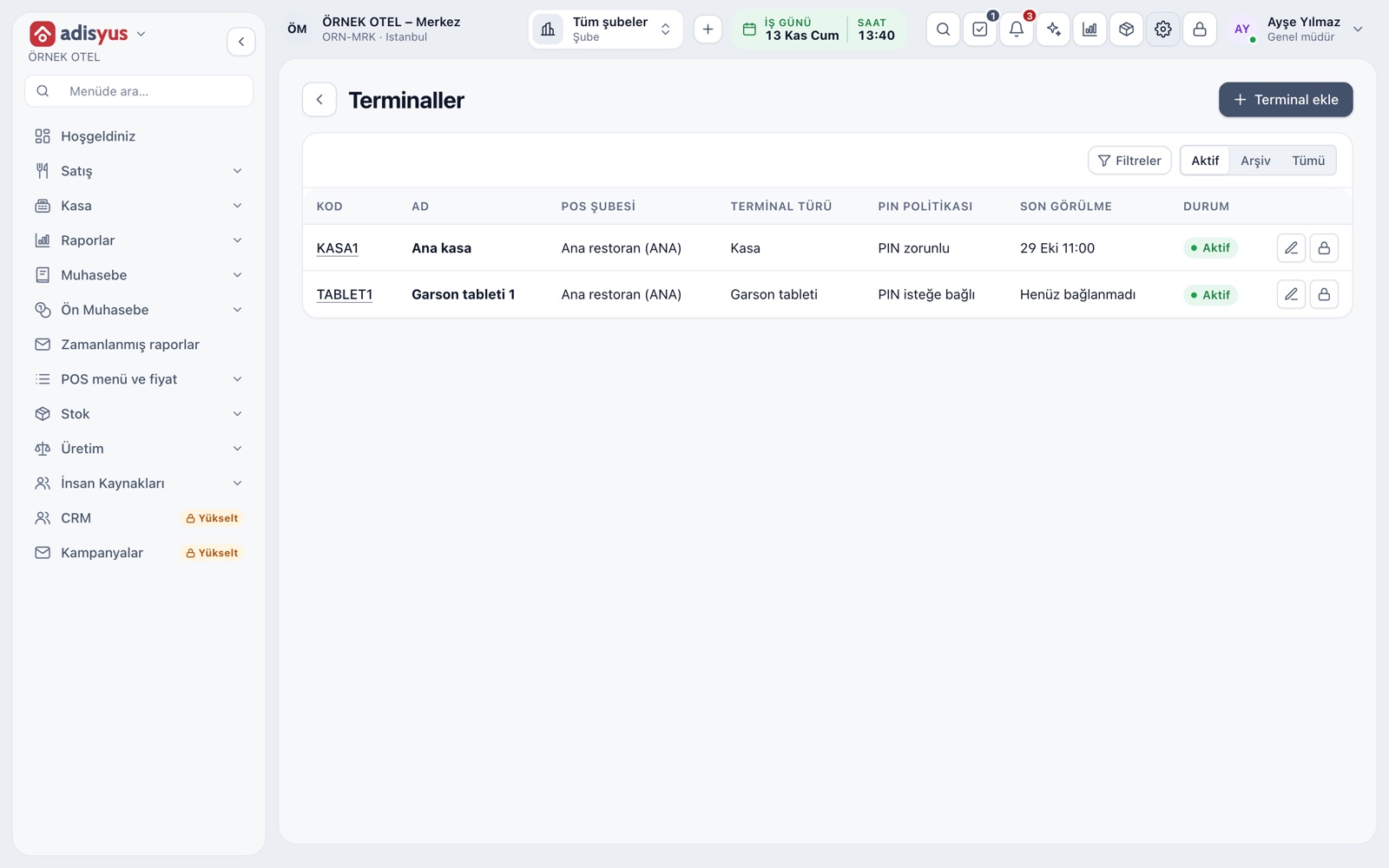
Reports and stock across the business
In POS reports the outlet picker also offers All POS outlets, with the same date and time range. The day-end closes per POS outlet. Stock balances appear consolidated across the business, and warehouse transfers record material movement between outlets.
- Item, server and payment type reports open to one outlet or all.
- The daily sales figure on the home screen filters by outlet.
- An outlet tied to its own legal entity is followed under its own name and tax number.
Safe handling of dropped connections
The sales screen is protected against network drops. If the connection breaks and the same action is sent again, no second check is opened; it is processed as a single record. An unsaved cart can be restored when the connection returns.
- Resending the same action does not create a duplicate.
- The screen warns you if you try to leave with unsaved lines.
Modules used together
Restaurant Settings
Business day start/end, notifications, display and general settings
Learn moreUsers and Permissions
Waiter, kitchen, cashier and manager roles with a permission matrix
Learn morePOS Reports
Product sales, end of day, shift, statistics, stock status and waste reports
Learn morePayments and Collections
Cash, card and split payments; fiscal cash register (ÖKC) integration
Learn morePrinters and Receipt Design
Printer roles, routing rules and receipt templates
Learn moreFrequently Asked Questions
Can I manage several outlets from one place?
Yes. The switcher in the top bar shows All outlets and POS reports include All POS outlets. Floors, stations, terminals and price lists are set per outlet.
Can each outlet be a separate legal entity?
Yes. From the branch card you can attach it to an existing or new legal entity (name, tax number, tax office).
Do I add an item separately for every outlet?
No. An item is added to the menu once and appears on the menus of the outlets you choose. Price lists can differ by outlet.
Do I need the hotel module if I use only adisyus?
No. Multi-outlet management is part of the POS product and does not depend on the hotel module.
Meet Multi-branch and Offline Mode
Let us call you for a live walkthrough, or try it free for 1 month.