
Payments and Collections
Take cash, card, meal card, house account and mixed payments in one window, close the till session with a count, and make every action with permission and a trail.
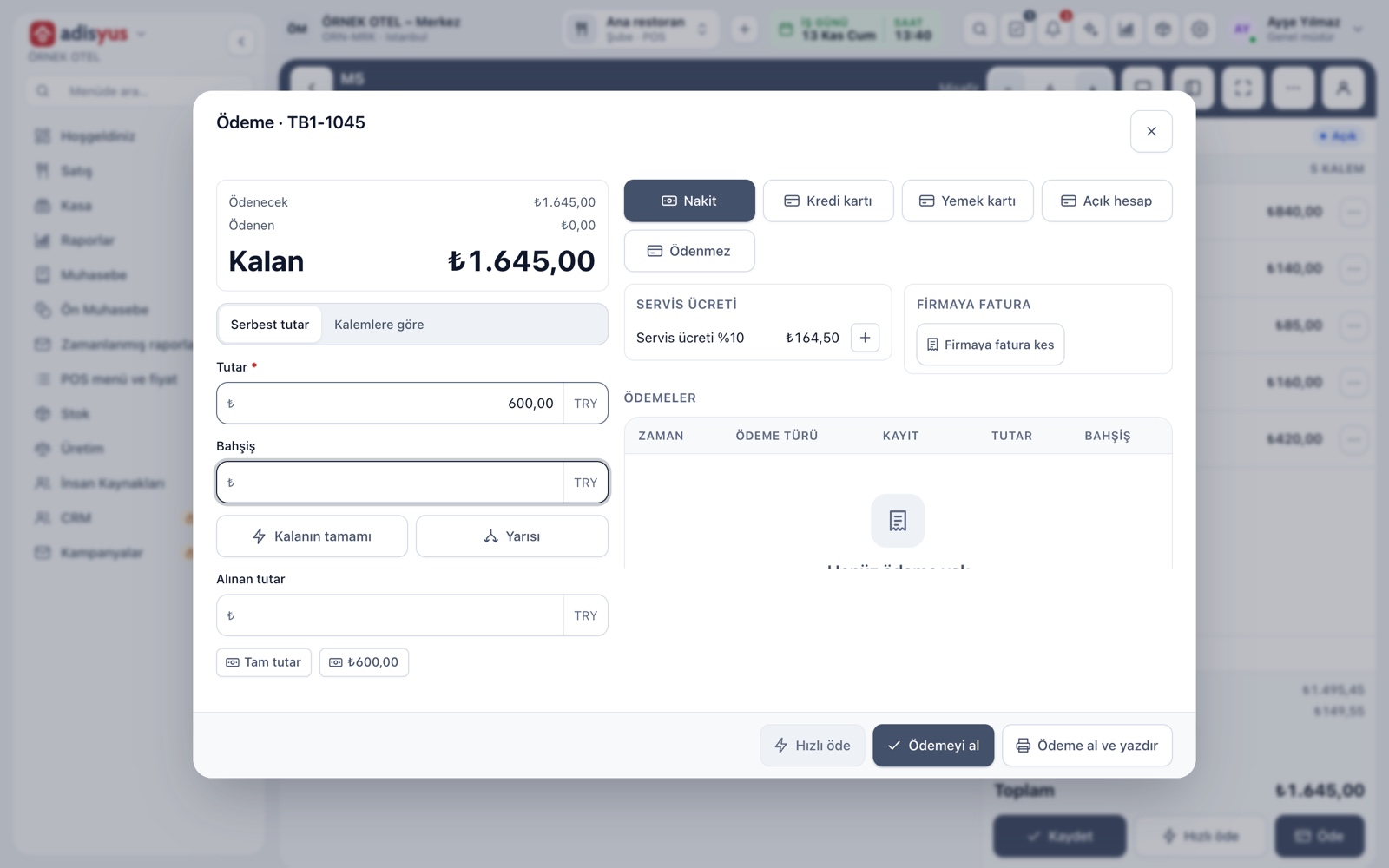
The payment window
The Pay button opens the payment window. The amount due, paid and remaining sit on the left and the payment types are listed on the right. You enter the amount, add a tip if needed, and for cash the change is calculated once you type the amount received. A fully paid check closes by itself according to the setting.
- Quick amount buttons: Full balance, Half, Round up.
- A reference is required for types that need a slip or approval number.
- Cash cannot be taken unless a till session is open.
Partial and split payments
Everyone at the table pays separately. You choose the scope as a free amount, by group or by items. In by-item payment you tick the items to pay and pick how many of a multi-quantity item. A mixed payment means closing the same check with several types.
- The amount cannot exceed the remaining balance.
- Each payment is its own record and can be refunded separately.
- Equal splitting can also be done on the check screen.
Payment types
Cash, card, meal card, house account, non-paying and other (transfer, cheque, voucher) types come ready; the Complete defaults button adds any that are missing. Types are the same central record as the hotel's payment methods. Mapping to an accounting account is optional.
- A type that requires a reference cannot take payment without a slip number.
- House account needs an account; non-paying needs a person and a reason.
- House account, non-paying and tips are separate permissions.
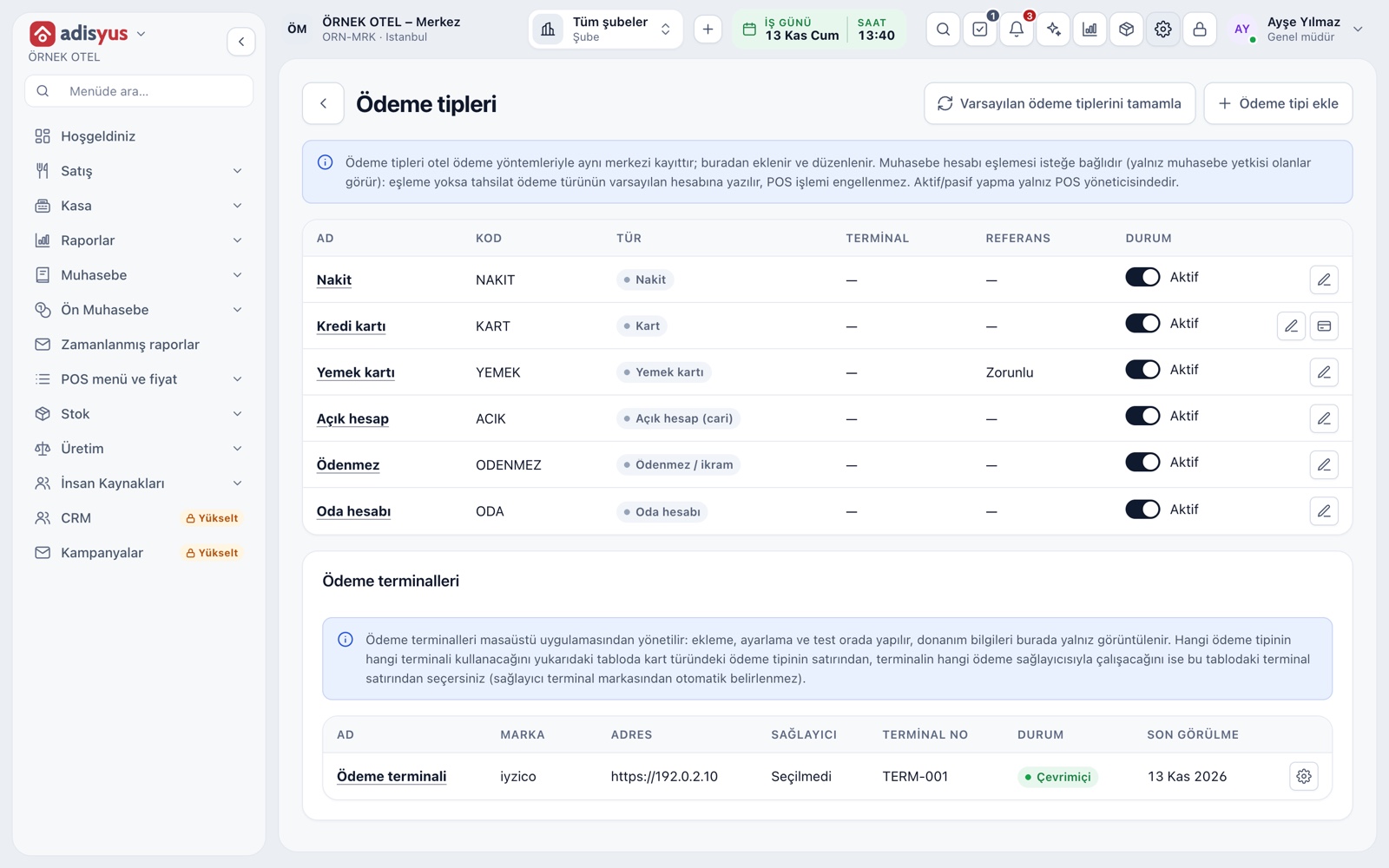
Card payments and terminals
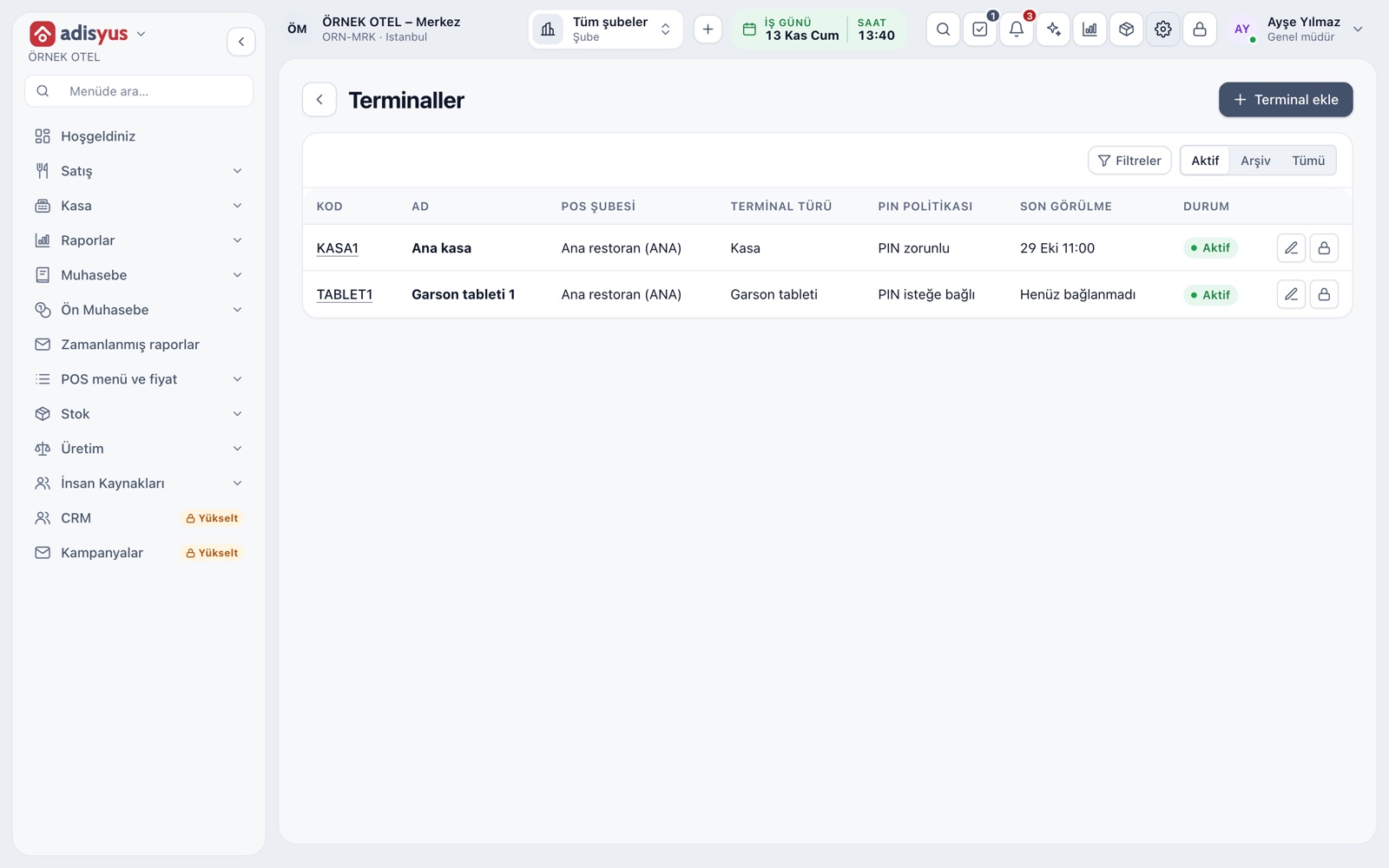
A card payment is taken on an EFT-POS terminal. While the terminal confirmation is pending, the amount is held in the balance so the same amount is not taken twice. If the device does not respond, Retry and Cancel options appear. Terminals are added from the Desktop app and their status is followed in the panel.
- A terminal shows as online, offline, error or unknown.
- The reason for a declined payment, such as card declined, shows on screen.
- An unresolved transaction is listed in the day-end pre-check.
Paying the bill by QR
If your payment provider is connected, you show the guest a QR code for the bill; the guest scans it with their phone and pays by card. The link is single-use and time-limited. For a person's share you enter an amount below the balance and produce a separate QR per person. When the payment arrives, the check balance updates.
- Statuses: Pending, Paid, Expired, Cancelled.
- A link can be cancelled before payment arrives.
- No tip is taken on a QR payment.
Refunds and invoices to a company
A refund writes a reversal for the payment; the check is not reopened and nothing is deleted. A cash refund needs an open till session. If the guest wants an invoice in a company's name, Invoice to company picks a saved account or opens a new one by tax number, and the check lines open as a draft in the Invoice section.
- A refund cannot exceed the amount paid.
- A wrong payment type is corrected by an authorized user with a reversal.
- Document type, series and finalizing are done in the Invoice section.
Till session and day-end
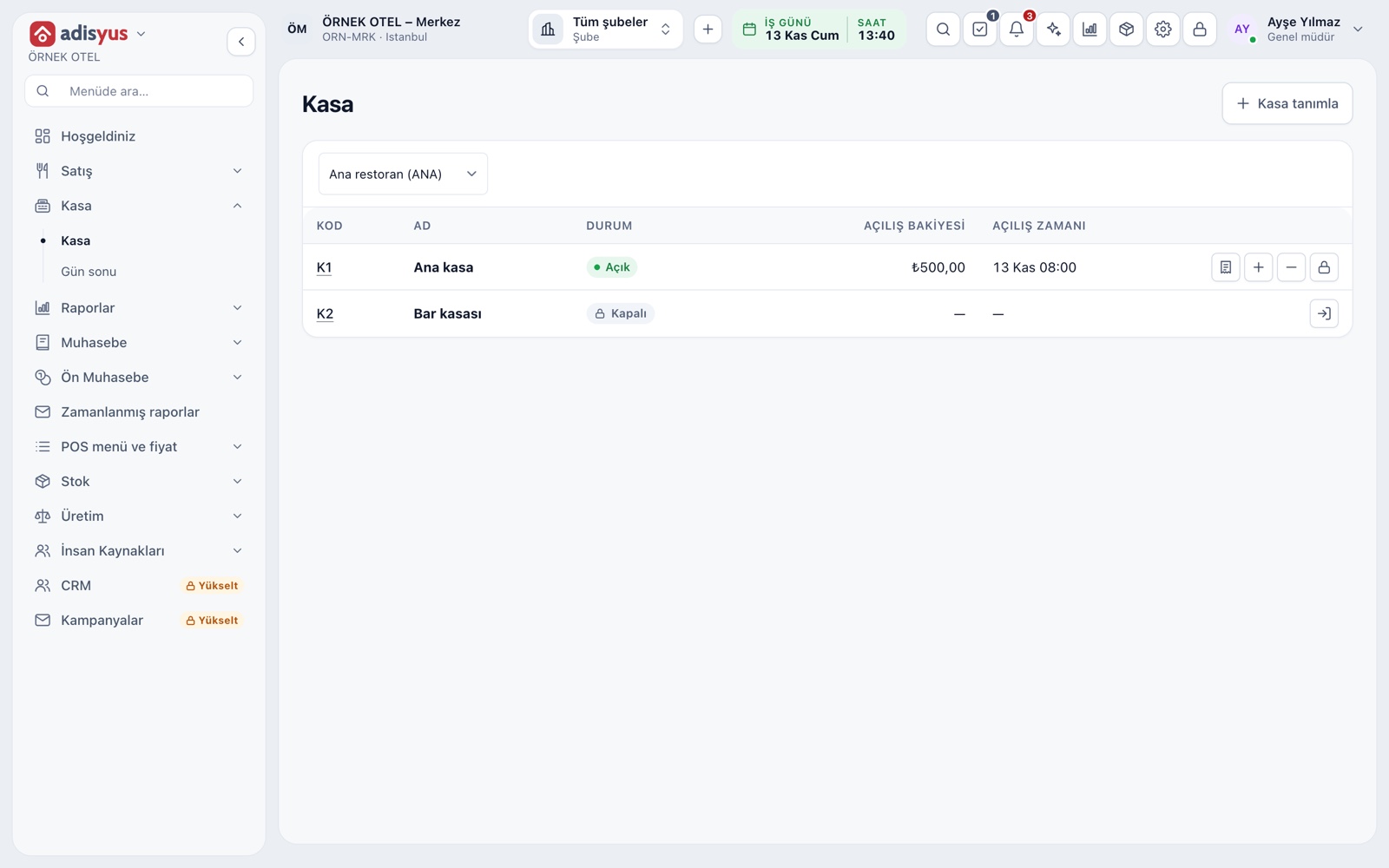
Cash collection needs an open till session. The cashier opens it by entering the opening amount, records cash in and out during the day, and takes an X report any time. At closing a count is entered for each payment type and the difference is written to the record. At day-end, collections come together in one place and an accounting entry is posted.
- A cashier sees only their own shift report.
- On a shared till, users switch with a four-digit PIN.
- An open check, an open till session and an unresolved card transaction are listed in the day-end pre-check.
Modules used together
Post to Room Account
The restaurant bill is posted to the hotel folio
Learn moreCustomers and House Accounts
Account customers, balances and open account tracking
Learn moreCover Charge and Service Fee
Cover charge and service fee rules, added automatically
Learn moreDiscounts and Comps
Predefined discounts and non-payable (comp) bills
Learn morePOS Reports
Product sales, end of day, shift, statistics, stock status and waste reports
Learn moreFrequently Asked Questions
What should I do when everyone at the table pays separately?
Choose the payment scope By items or By group. Each person's items go to a separate payment, and you can pick how many of a multi-quantity item. Splitting the check on its own screen is another option.
Why does cash need an open till session?
Cash collection has to be tied to a till and a shift so expected and counted amounts can be compared at closing. If there is no session, the window warns you.
Can I correct a check I closed with the wrong payment type?
An authorized user corrects the payment type from the All Checks screen; a reversal is written to the old type and a payment to the new one, and a reason is required.
Can I use the payment screen without the hotel?
Yes. adisyus works on its own. The Room account payment type appears only when used together with hotel management.
Meet Payments and Collections
Let us call you for a live walkthrough, or try it free for 1 month.