
Table Plan and Zones
Follow your rooms tab by tab and see tables as cards or as a plan you draw yourself. Occupied tables, elapsed time, server and amount show at a glance, and you tap a free table to open a check.
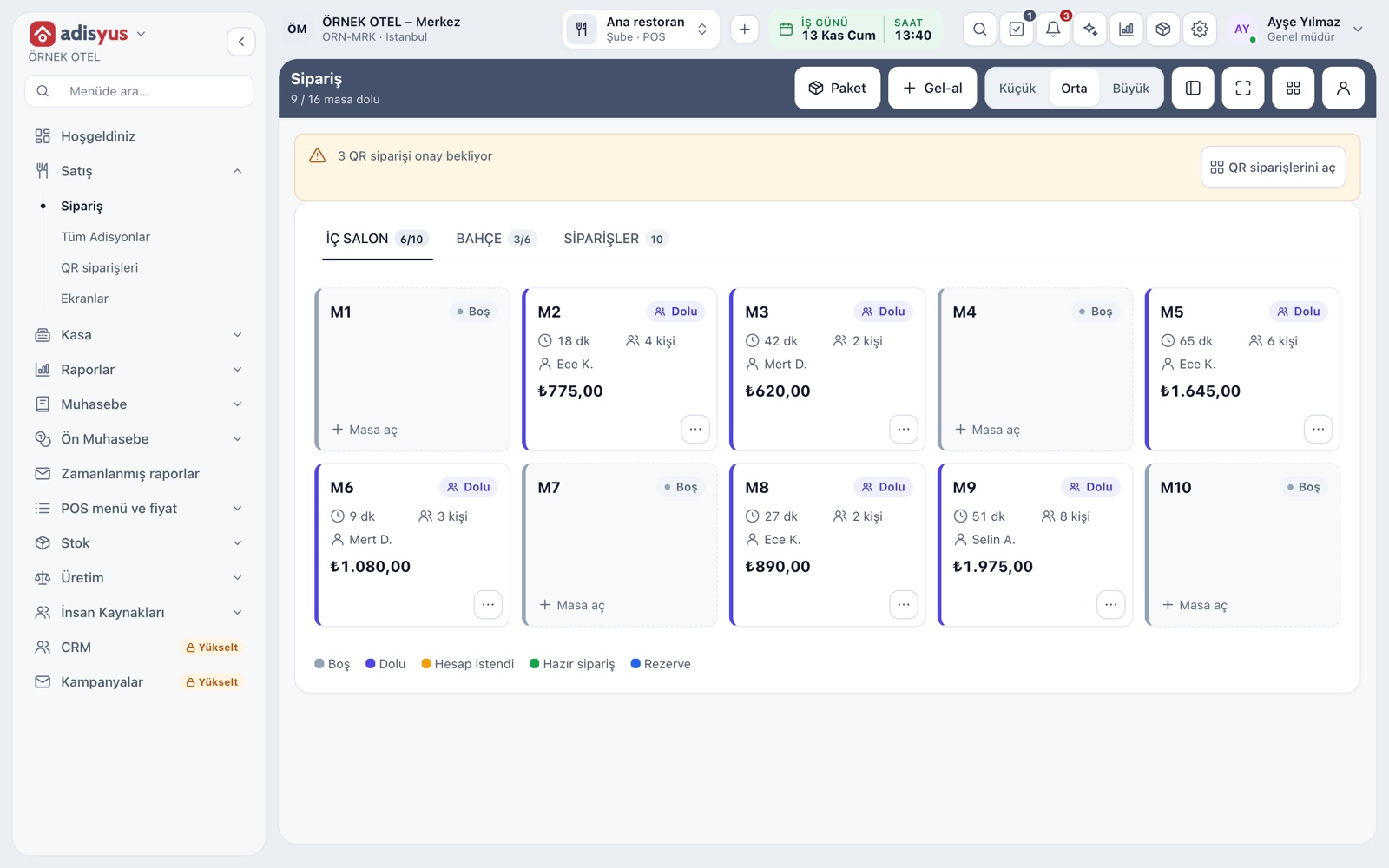
Service center and zone tabs
Each zone (main hall, garden, terrace) is its own tab, and its header shows occupied/total tables. The last tab is Orders and lists table, delivery and takeaway checks together. From the top bar you can also open a delivery or takeaway order without a table.
- Small, Medium and Large card density can be chosen.
- An alert appears above the screen when a QR order awaits approval.
- The screen goes full screen with one tap.
The table card
Each table is a single card: table name, status, how long the check has been open, guests, server and current amount. The whole card is a button; tapping a free table opens a check and tapping an occupied one takes you to it.
- The three-dot menu: pay, interim bill, move, merge, split, discount, cancel.
- The menu lists only actions that fit your permissions.
- A check can be given its own name.
List and floor layout views
You follow the same zone in two ways: a card list or a floor layout where tables stand where they really are. The layout view has zoom in, zoom out and fit buttons, which makes it easy to fit a wide garden on a tablet.
- One tap switches between List and Floor layout.
- Tapping a table and the three-dot menu work the same in the layout view.
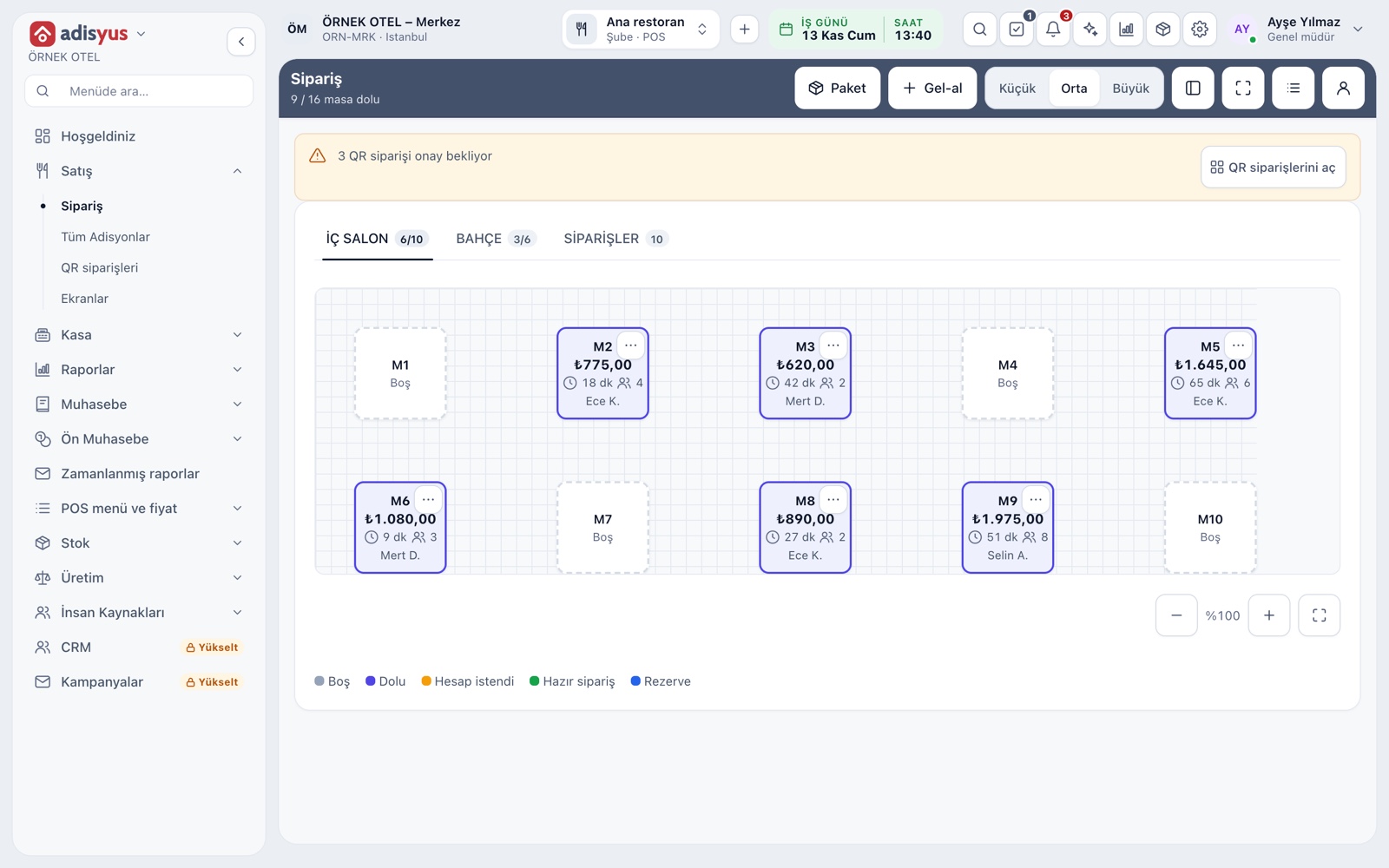
Table statuses and the idle table alert
A table shows as free, occupied, or ready when a finished order comes from the kitchen. Status is given by badge text and an icon, not by color alone. With the idle table alert on, an open table that sees no order, note or payment for a set time is marked.
- Status changes by itself as checks open and close.
- The idle threshold is set in minutes per POS outlet.
- The legend strip at the bottom recalls what the colors mean.
Moving, merging and splitting tables
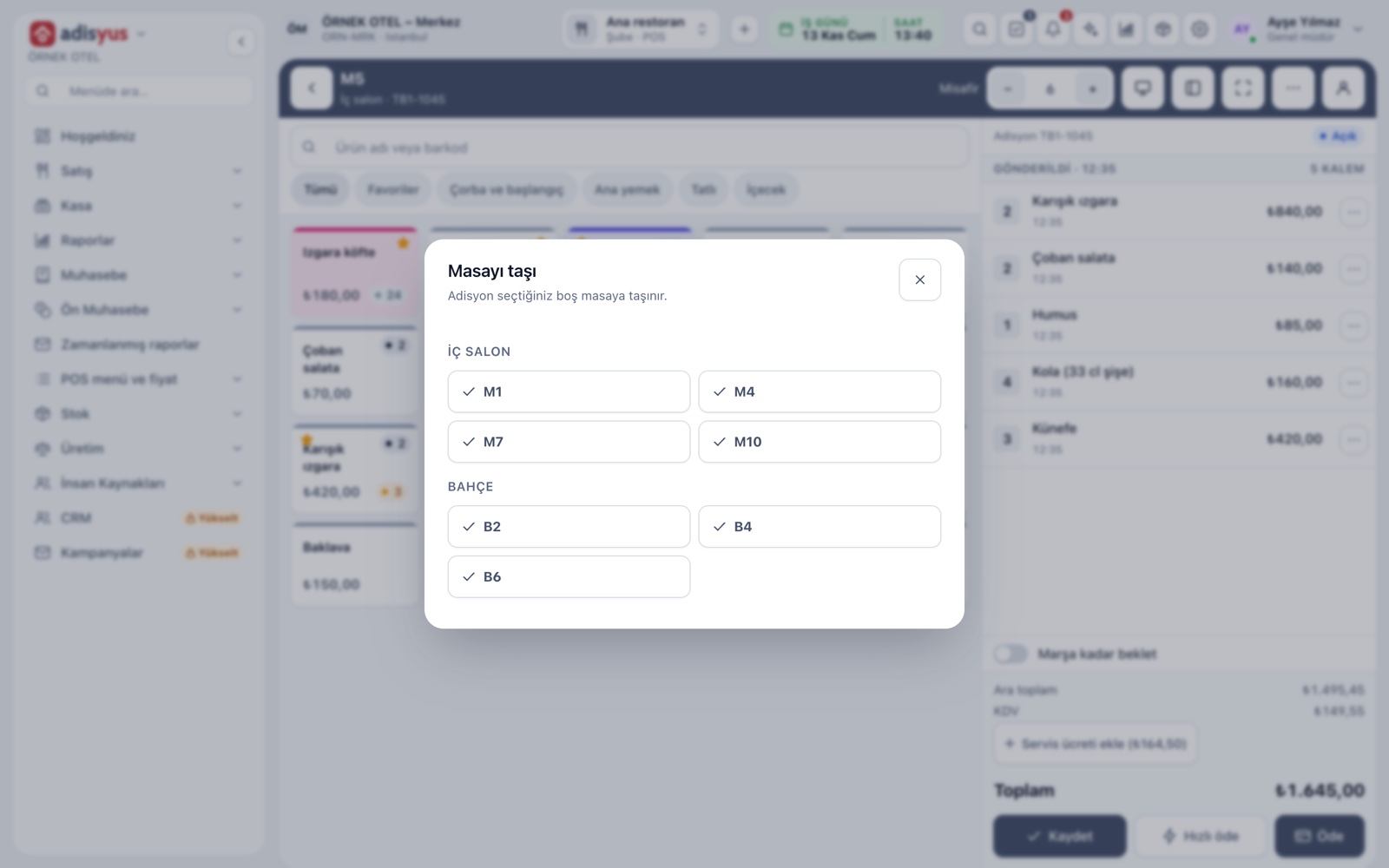
When guests move to another table, the check moves with them: free tables are listed zone by zone. In a merge, another occupied table's check joins this one. A split moves lines onto a new check.
- Selected lines can be moved to another free table one by one.
- Splitting works by lines or as an equal per-person share.
- Every action is written to the check history with user and time.
Several departments at one table
A table can receive items from both the kitchen and the bar. A check belongs to one department; when an item of another department is added, the lines go to a separate check and the screen tells you. Revenue is split correctly by department.
- Each department's check is paid and reported separately.
- In a single-department business this question never appears.
Zones, tables and your own plan
Zones and tables are defined under the POS section of Settings: name, capacity and shape on the plan. Bulk add creates consecutive tables from a prefix and a start number. On the Floor plan tab you drag tables, change their shape and size, and apply with Save.
- A table can be square, rectangular or round.
- Each zone's plan is drawn and saved separately.
- A QR code can be produced per table.
- Users without plan-edit permission only view the plan.
Modules used together
Restaurant POS
Check, table plan, cashier and end of day
Learn moreChecks and Order Entry
Item entry, options, comps, split and merge bills
Learn moreKitchen Display and Kitchen Groups
Station-based kitchen display (KDS) and preparation times
Learn moreSmart Digital Menu
Order from the table with a QR menu
Learn moreRestaurant Settings
Business day start/end, notifications, display and general settings
Learn moreFrequently Asked Questions
Can I draw the table plan myself?
Yes. The POS section of Settings has a Floor plan tab; you drag tables into place, set their shape and size and apply with Save.
Can I define several zones or a garden?
Yes. Each zone is its own tab with its own tables and plan. The occupied/total counter in the tab header shows that zone's occupancy.
Do the check and payments get lost when I move a table?
No. The check's lines move to the new table as they are, and the action is written to the check history with user and time.
Is the idle table alert shown to everyone?
The alert is switched on or off per POS outlet and its threshold is set in minutes. When on, the table is marked on its card and on the plan.
Meet Table Plan and Zones
Let us call you for a live walkthrough, or try it free for 1 month.