
Staff App
Staff scan the QR code posted at a zone with their phone browser, their location is verified and the clock-in or clock-out is recorded. No separate app and no extra SMS or WhatsApp confirmation is needed.
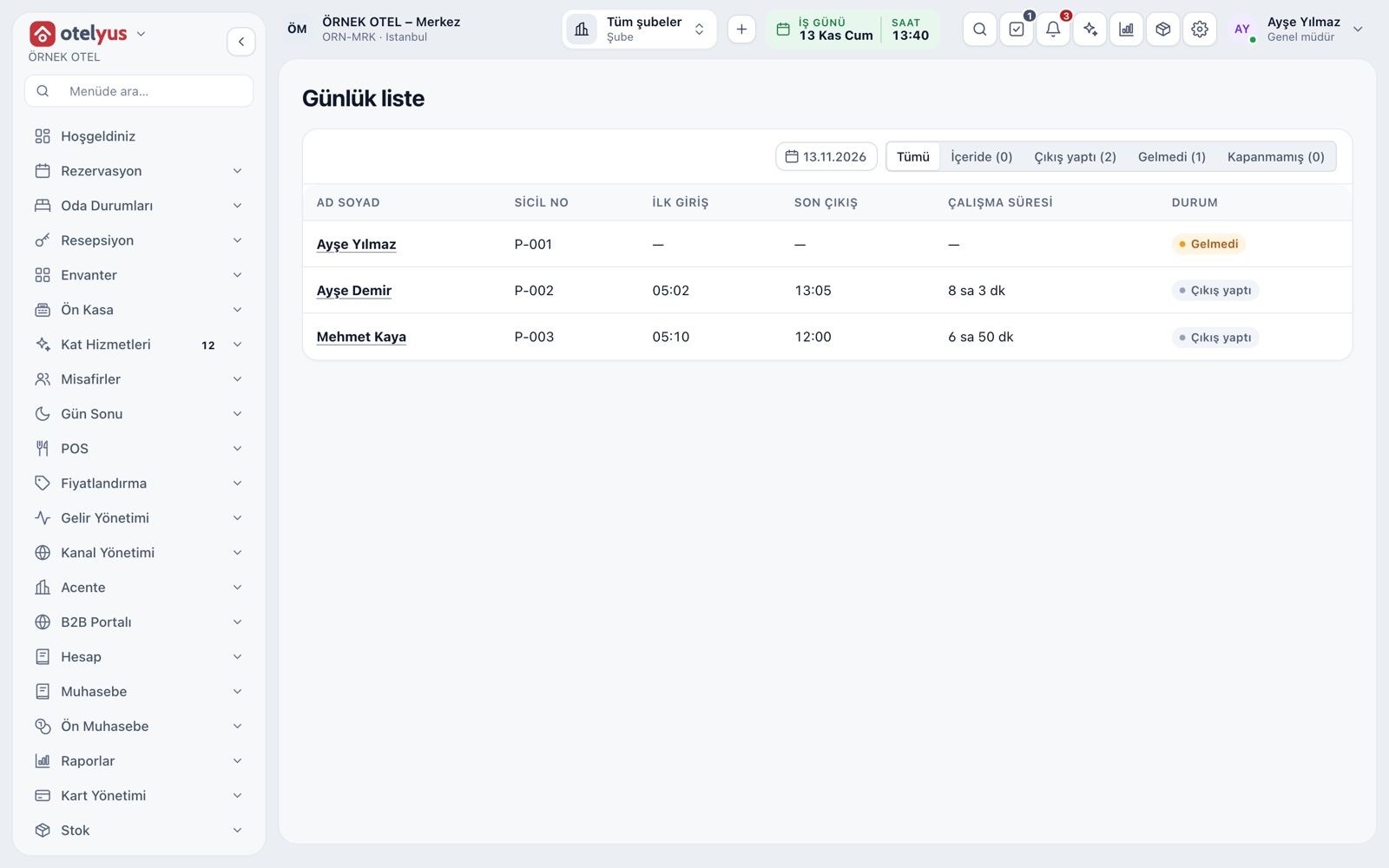
Daily list: who is in, who has not arrived
The daily list shows everyone's status for the chosen day: in, clocked out, absent or not closed. First clock-in, last clock-out and time worked sit on the row. A clock-in with no clock-out shows as not closed, and the employee can clock in again.
- Tabs show the count for each status.
- The list is available to the staff manager.
- Each record carries its zone, verification type, distance and accuracy.
Clock in and out from the phone
The employee scans the QR code at the zone with the phone browser, the phone's location is checked against the zone radius, and the record is saved with the time, zone and distance. It takes one step, with no separate app to install.
- A QR code alone is not enough; location verification is needed too.
- The next action (clock-in or clock-out) is shown before saving.
- Even if the same action is sent twice, it is recorded once.
- Error messages say why: outside the zone, location too old and so on.
Zones and QR codes
Every clock-in point is a zone, defined by name, type, location and radius. The type can be clock-in only, clock-out only or both. Each zone has its own QR code, which you print and post at the entrance.
- Use my current location makes setting a zone easier.
- The radius is set zone by zone.
- Refreshing a QR code invalidates the printed ones.
Location verification
Verification uses four rules: the phone must be inside the zone radius, the location accuracy must be good enough and recent enough, and a minimum time must pass between two records. Location verification is an indicator, not proof: a browser location can be altered with fake-location apps.
- Thresholds are in the Verification section of Staff settings.
- Raw latitude and longitude are not stored; only distance and accuracy are kept.
- The camera image never goes to the server.
- Staff accept the privacy notice at first sign-in.
Record correction and attendance report
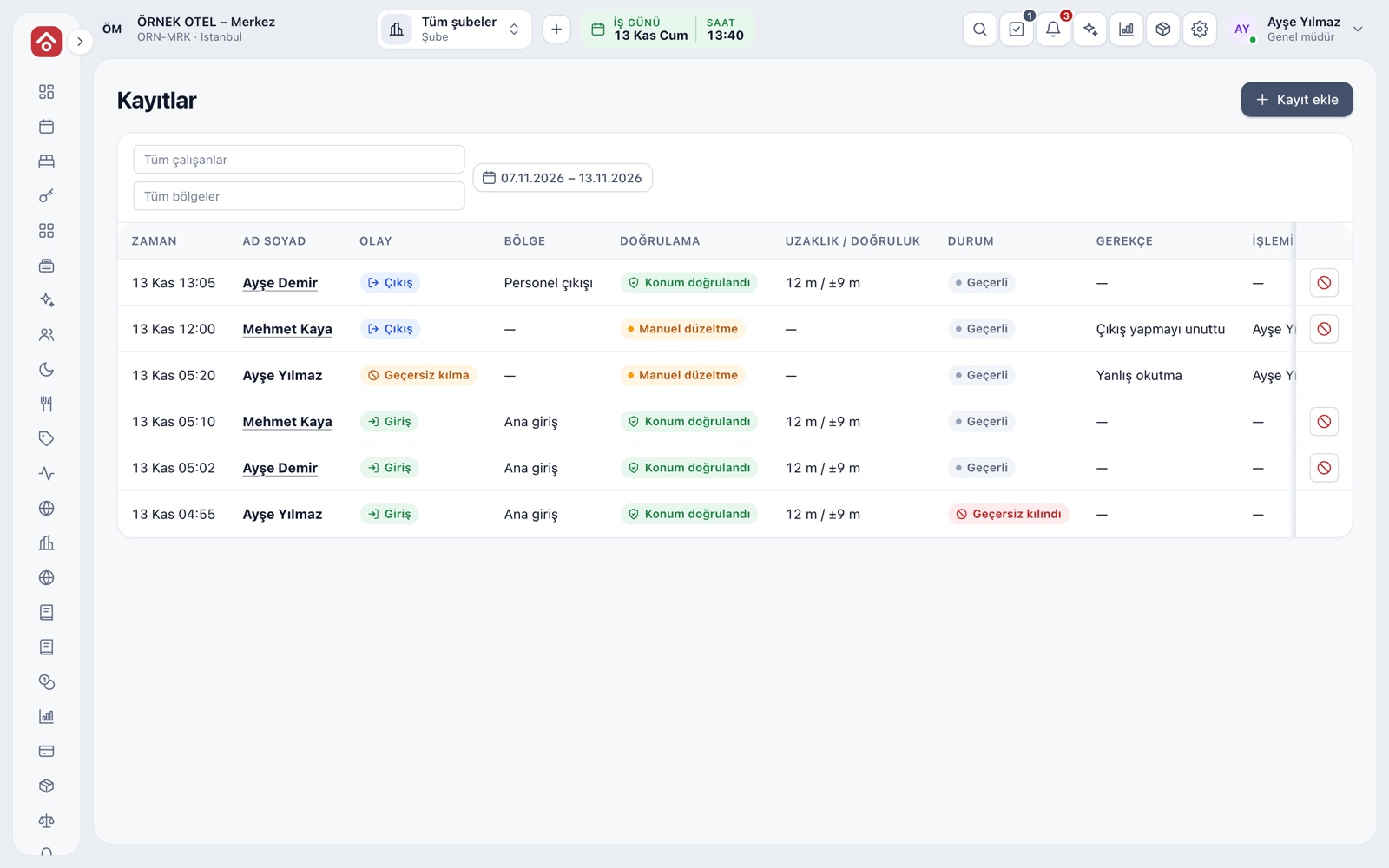
A manager fixes a forgotten or wrong record. A manual record is marked Manual correction and written to the audit log with its reason; a wrong record is not deleted but voided. The attendance report gives per-person totals and a daily breakdown, and exports to Excel or PDF.
- A reason is required, and the user who acted shows on the record.
- Records filter by employee, zone and date.
- The report can feed timekeeping.
- Pay, payroll and shift planning are outside this module.
Accounts and roles
A manager creates employee accounts: name, mobile number and an initial password. There are two roles: Staff sees only their own clock-ins, while Staff manager handles zones and QR codes, employees, record correction, the report and settings. Staff is a shared module, so in a business that has it, it appears on all screens with the same data.
- Sign-in uses the business code, mobile number and password.
- A deactivated account cannot clock in or out; records are kept.
- The manager resets passwords.
Modules used together
Staff and Time Attendance
Zone QR and location-based check-in/out (personelyus)
Learn moreMobile Apps
otelyus opens in the browser on phones and tablets and can be added to the home screen, with no store download. Mobile housekeeping keeps working when the connection drops, and tasks, staff clock-in and guest flows suit the phone.
Learn moreData Security and KVKK
Each business's data is kept apart; sensitive fields are masked and access is logged. KVKK requests, retention periods, legal hold and destruction are managed in the software. Compliance takes more than software, and this page describes the tools.
Learn moreIdentity and Access Management
Users, roles, sessions and single sign-on (SSO)
Learn moreFrequently Asked Questions
Do staff need to install an app on their phones?
No. Clocking in and out happens in the phone browser; only camera permission to scan the QR code and location permission for verification are needed.
Can the location be faked?
A browser location can be altered with fake-location apps, and the system cannot tell. That is why verification is an indicator and should not be treated as proof.
Is an SMS or WhatsApp confirmation needed?
No. There is no extra confirmation step. Staff sign in with the business code, mobile number and password, scan the QR code and verify their location.
Who corrects a wrong record?
The staff manager. A manual record is entered with a reason and written to the audit log; a wrong record is voided, not deleted.
Is my raw location stored?
No. Raw latitude and longitude are not stored; only the clock time, zone, distance to the zone and location accuracy are kept.
Meet Staff App
Let us call you for a live walkthrough, or try it free for 1 month.