
Smart Digital Menu
Guests scan the QR code on the table, open the menu on their phone and place an order. Your staff approve it, and it joins the check and goes to the kitchen. No app, sign-up or personal details needed.
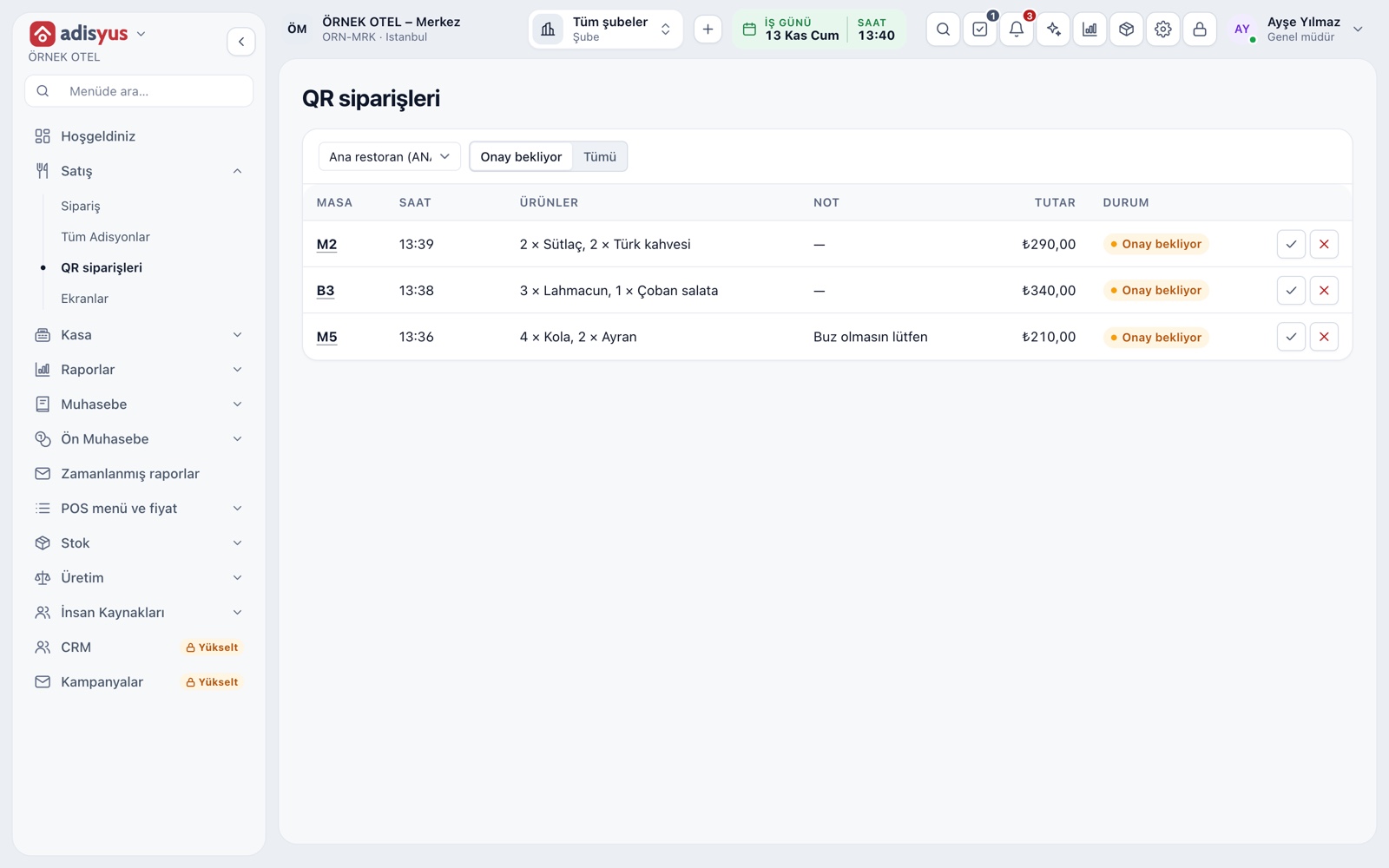
Phone orders with staff approval
A printed QR code sits on every table. Guests scan it, browse the menu, build a basket and send the order. It lands with your staff on the QR Orders page; once approved it joins the table's check and goes to the kitchen. If you decline, your written reason is shown to the guest.
- No sign-in or personal details are asked for.
- A pending order shows as an alert on the service screen.
- If the table has no open check, the order opens a new one.
- Prices come from POS records and cannot be changed from the phone.
Approval and ordering hours
By default staff approve every QR order. In busy hours you can switch on auto-approve so the order drops straight onto the check. If you set ordering hours, guests can still see the menu outside them but cannot place an order.
- Auto-approve is switched on or off per POS outlet.
- Outside the hours the menu stays open; only ordering closes.
- The QR menu can be turned off for an outlet with one switch.
A look that fits your brand
The QR menu is customized per outlet. You write the welcome text and upload a logo and cover image. Main color and background come from a ready palette or a color code, and text size has four steps.
- Each outlet's menu can carry its own colors and images.
- Color fields offer a picker, a color code and a ready palette.
- The logo is uploaded as a PNG.
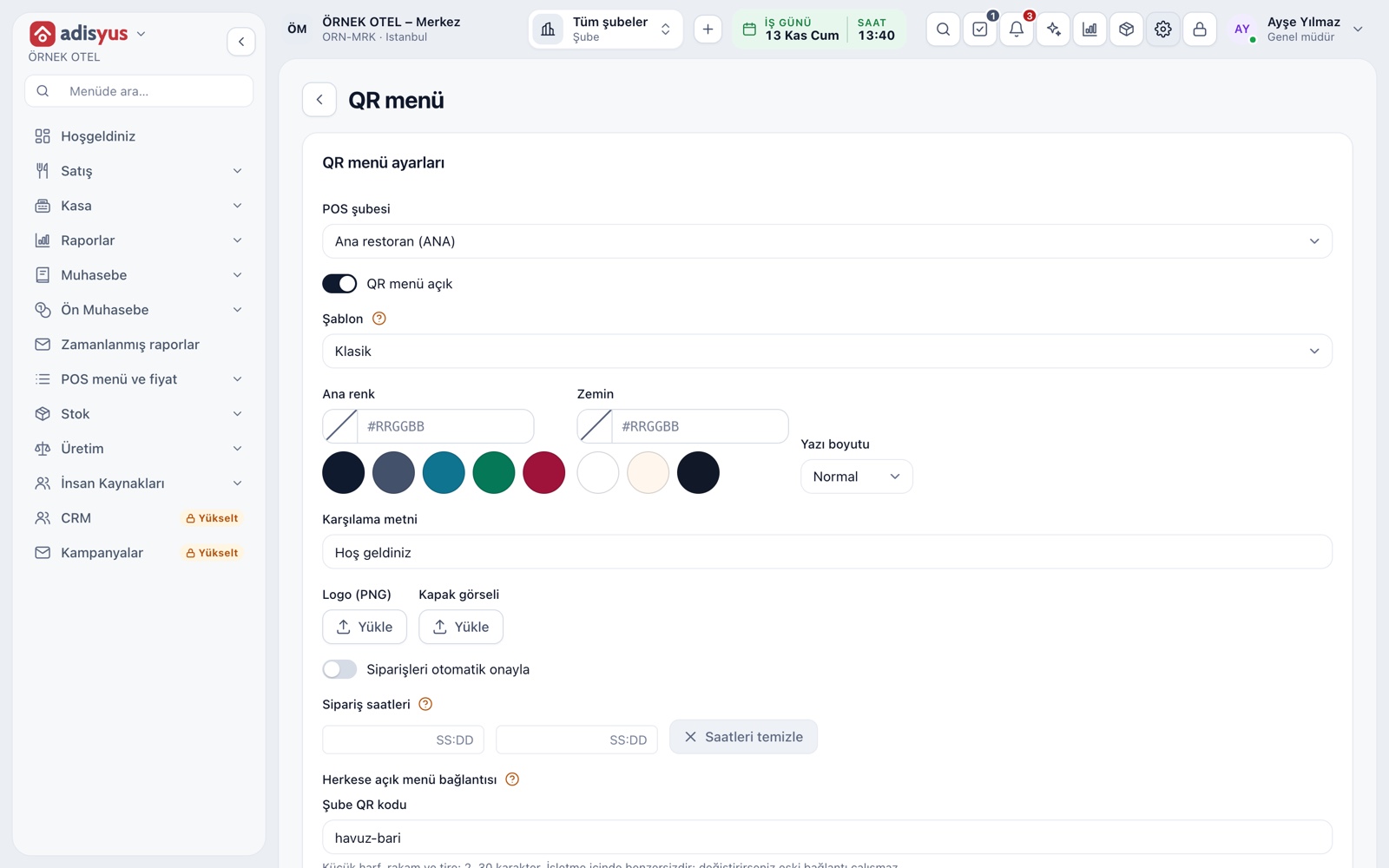
Table codes and the outlet menu
Every table has its own QR code, and all codes print from one print page. If a code is lost or gets into the wrong hands, you renew it and the old one stops working at once. Each outlet also has a read-only public menu link and QR code for your website or entrance sign.
- The table list shows each table's QR status.
- The print page can be printed or saved as a PDF.
- Orders cannot be placed from the public menu; it shows the menu and prices only.
Modules used together
Menu and Product Management
Categories, products, photos, favorites and sales status
Learn moreTable Plan and Zones
Freely editable floor plan, zone tabs, table statuses
Learn moreKitchen Display and Kitchen Groups
Station-based kitchen display (KDS) and preparation times
Learn moreChecks and Order Entry
Item entry, options, comps, split and merge bills
Learn morePayments and Collections
Cash, card and split payments; fiscal cash register (ÖKC) integration
Learn moreFrequently Asked Questions
Do guests need to download an app?
No. The QR code is read with the phone camera and the menu opens in the browser. No sign-up, sign-in or personal details are asked for.
Does the order go straight to the kitchen?
By default no, staff approve it first. An approved order joins the check and goes to the kitchen. You can switch on auto-approve to remove that step.
Do I have to show every item on the QR menu?
No. The show-on-QR switch on the item card hides any item from the QR menu only. Its look on the POS sales screen does not change.
What if a table's code is shared by mistake?
Renew the table's QR code and the old one becomes invalid at once. Print the new code and place it on the table.
Meet Smart Digital Menu
Let us call you for a live walkthrough, or try it free for 1 month.