Restaurant Settings
Restaurant Settings is where you set how your restaurant runs: business type, trading day, order screen, kitchen alerts and stock behavior are all managed from one place.
All settings in one place
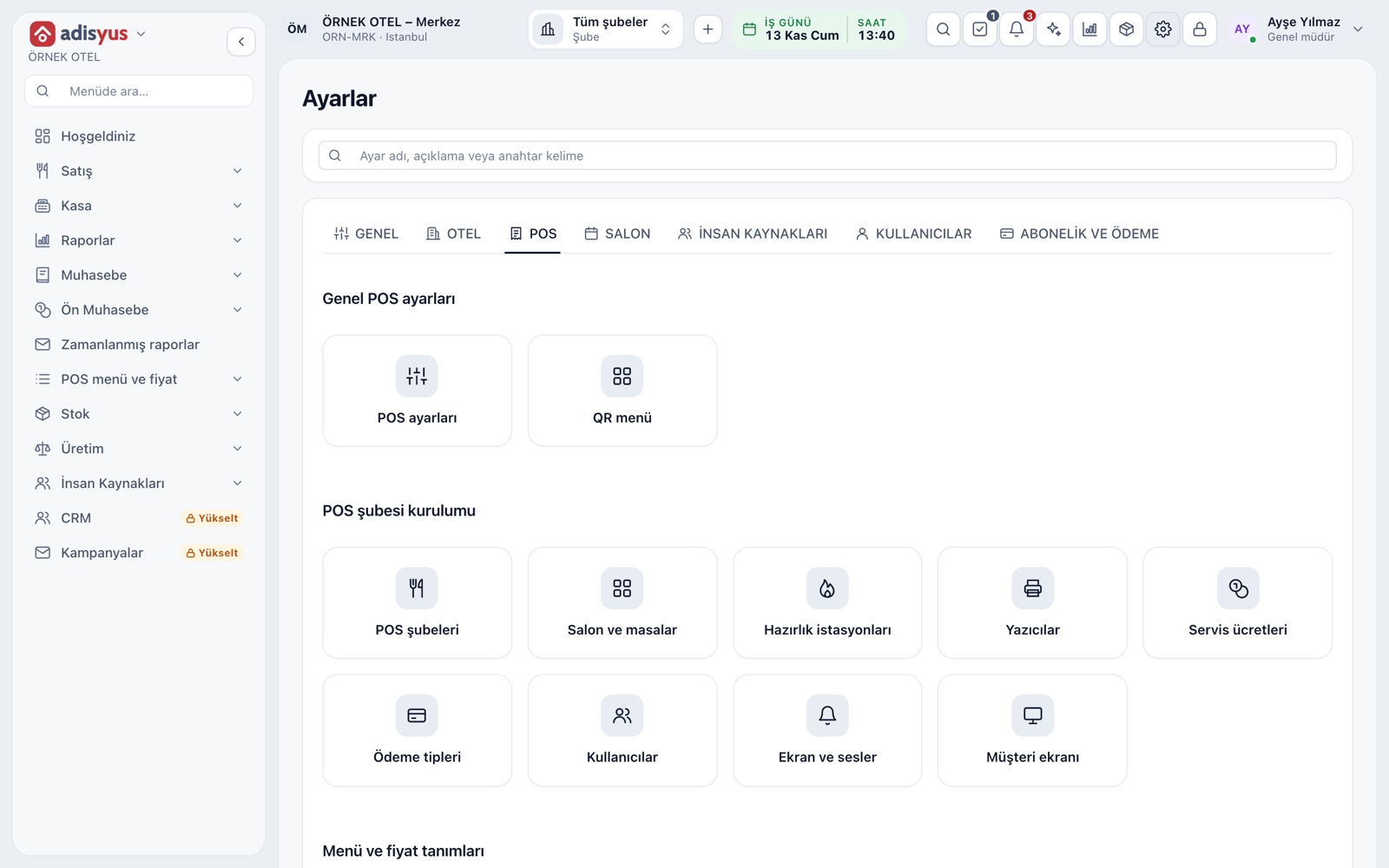
Every POS setting sits under the POS tab of the Settings screen. Daily work stays in the side menu; anything that needs configuring lives here. You can search for a setting by name and save changes for the property you have selected. If you only run a restaurant, you never need to open hotel settings.
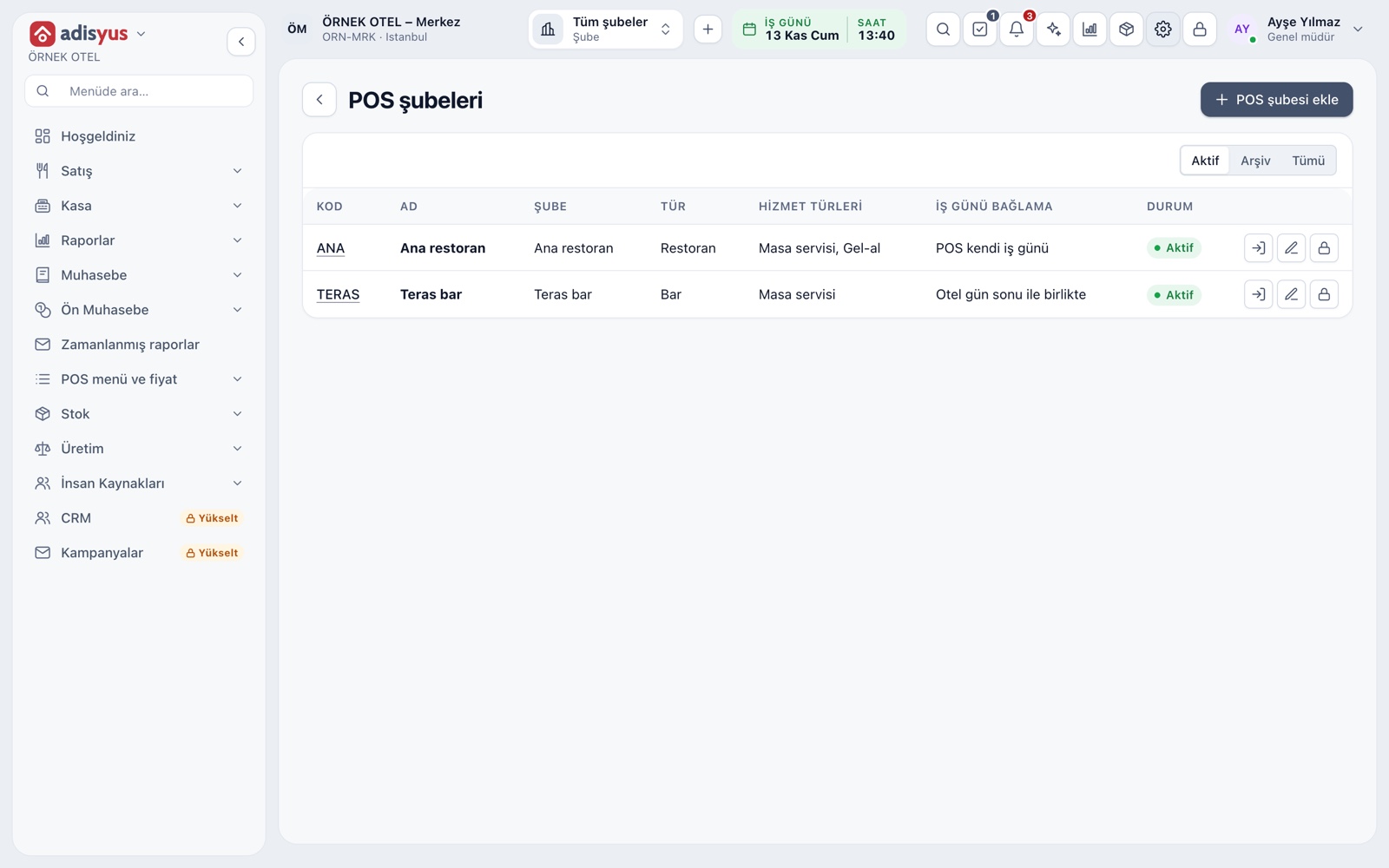
- Branch, table, printer and payment type setup sit together
- Search settings by name or keyword
- Users without edit rights see settings read-only
A ready start for your business type
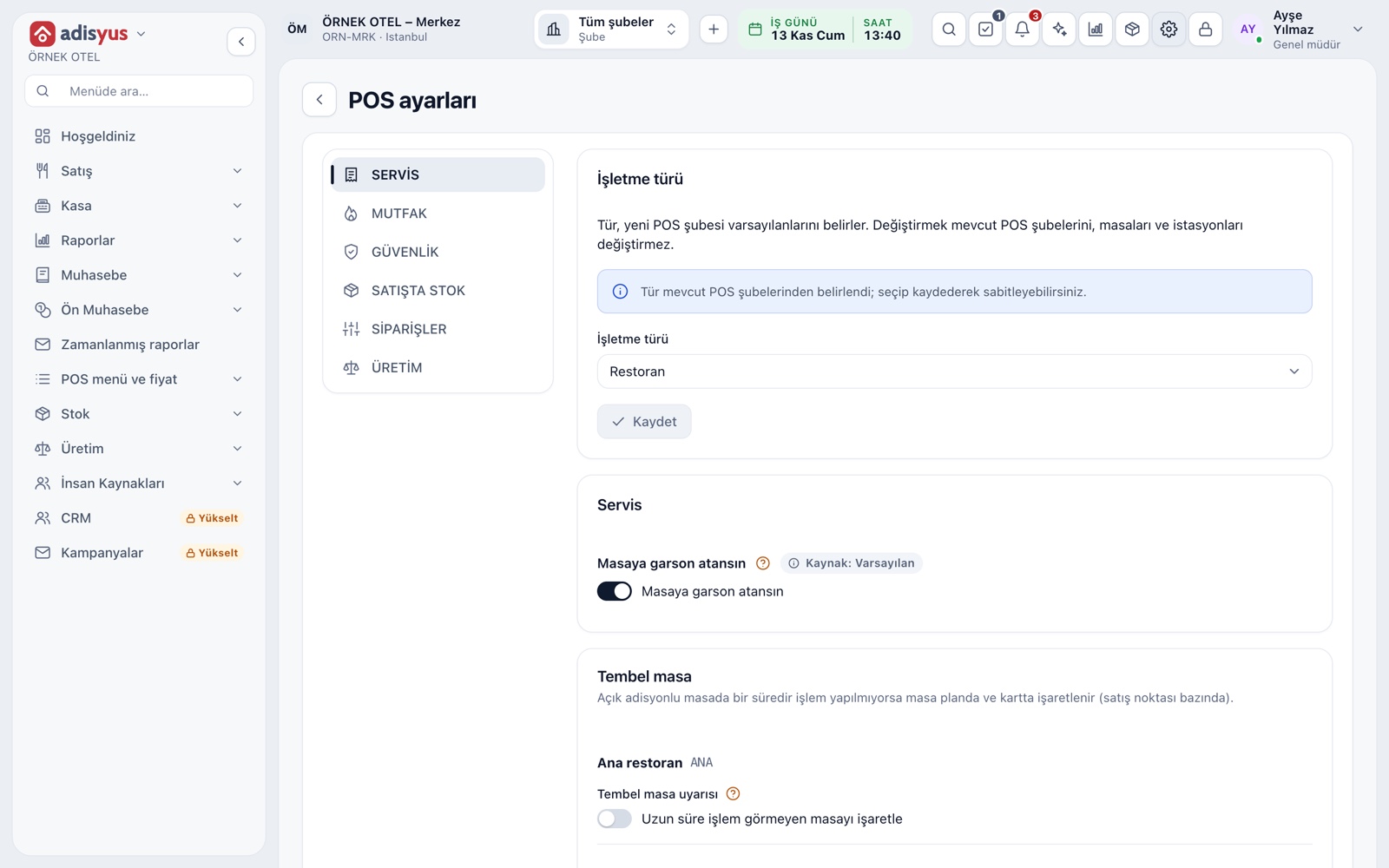
Pick restaurant, cafe, bar, pastry shop, quick service or takeaway kitchen, and a new branch opens with that type's defaults. A cafe needs no kitchen station, a pastry shop needs no dining room, and a bar starts with check grouping on. You can change the type later without disturbing existing branches.
- A first-run wizard asks for the type and your first branch
- Settings are grouped: Service, Kitchen, Security, Stock and more
- Screen lock and PIN options sit in the security group
Trading day and end of day
You choose per branch which day a sale belongs to. Set the start time to 03:00 and a sale at 02:00 counts toward the previous day, so service that runs past midnight stays in one day's revenue. End of day runs automatically or with one button.
- With no open checks, end of day closes itself and produces the report
- If checks are still open, managers are notified
- A branch can also follow the hotel's night audit
Order screen and kitchen alerts
You decide how the order screen opens, which payment type is preselected and whether prices show without VAT. On the kitchen side you set whether tickets print automatically, how idle tables are flagged and how the ready-to-serve alert sounds.
- A paid check can close itself
- Tables left idle for too long are flagged on the floor plan
- A ready alert sounds for servers and the cashier
- Kitchen tickets print automatically or by hand
Stock at the point of sale and VAT on comps
Choose whether stock is deducted when an order goes to the kitchen or when the check closes. When an item runs out, you can let sales continue into negative stock or block items without enough balance. The VAT base for complimentary items is also set here.
- Show remaining quantity, only a sold-out warning, or nothing
- In the chosen mode, an item is never deducted twice
- Check the VAT treatment of comps with your accountant
Terminals and personal preferences
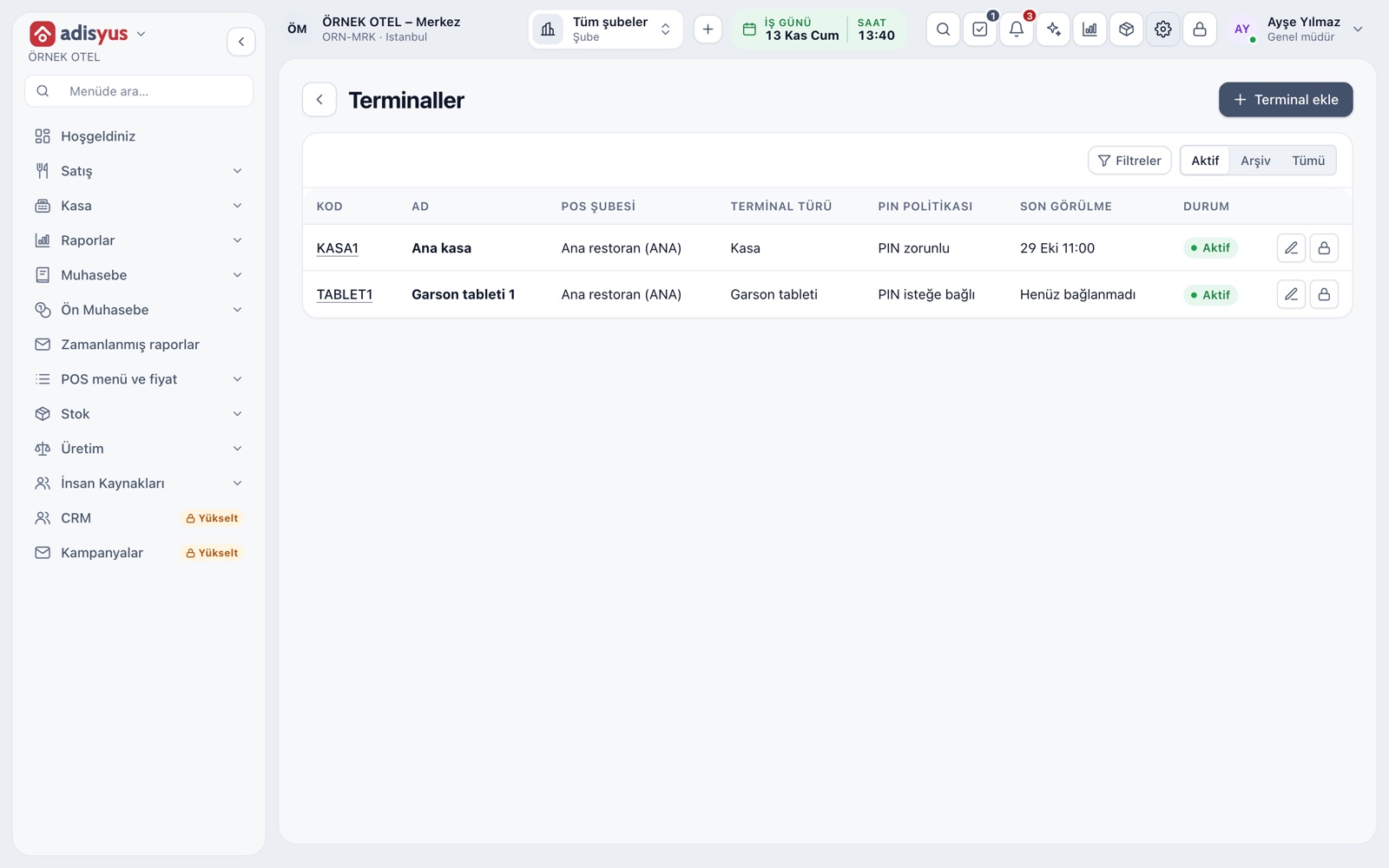
The cashier, order, payment and kitchen screens work without defining a terminal. Add one for cash register pairing, device-specific PINs and to tell cashier, tablet, kitchen and customer screens apart. Each user also picks their own screen color and alert sound.
- Terminal status shows as online or offline
- Each payment type is linked to the terminal it uses
- Color and sound choices affect only that user
Modules used together
Users and Permissions
Waiter, kitchen, cashier and manager roles with a permission matrix
Learn morePrinters and Receipt Design
Printer roles, routing rules and receipt templates
Learn moreKitchen Display and Kitchen Groups
Station-based kitchen display (KDS) and preparation times
Learn moreMulti-branch and Offline Mode
Branch reports; keeps working when the internet is down
Learn moreStock and Recipe Costing
Recipe-based costing, stock counts and waste tracking
Learn moreFrequently Asked Questions
Do I have to run end of day by hand?
No, it is your choice. In automatic mode, end of day runs at the start time when no checks are open. If any are open, managers get a notification.
How do I set the trading day for a restaurant that stays open past midnight?
Set the trading day start to, for example, 03:00. Sales before that time count toward the previous day's revenue.
Do I have to define a terminal?
No. The cashier, order, payment and kitchen screens work without one. A terminal is only needed for cash register pairing and device-specific PINs.
Can an item keep selling after it runs out?
That is a setting. When on, the item sells into negative stock; when off, items without enough balance cannot be added.
If I only use adisyus, do I need hotel settings?
No. All POS settings sit under Settings > POS and do not depend on the hotel module.
Meet Restaurant Settings
Let us call you for a live walkthrough, or try it free for 1 month.