
Checks and Order Entry
The order screen shows the menu on the left and the check on the right: tap an item, choose options and send it to the kitchen with Save. Comps, discounts, splits and table moves are permission-based and leave a trail.
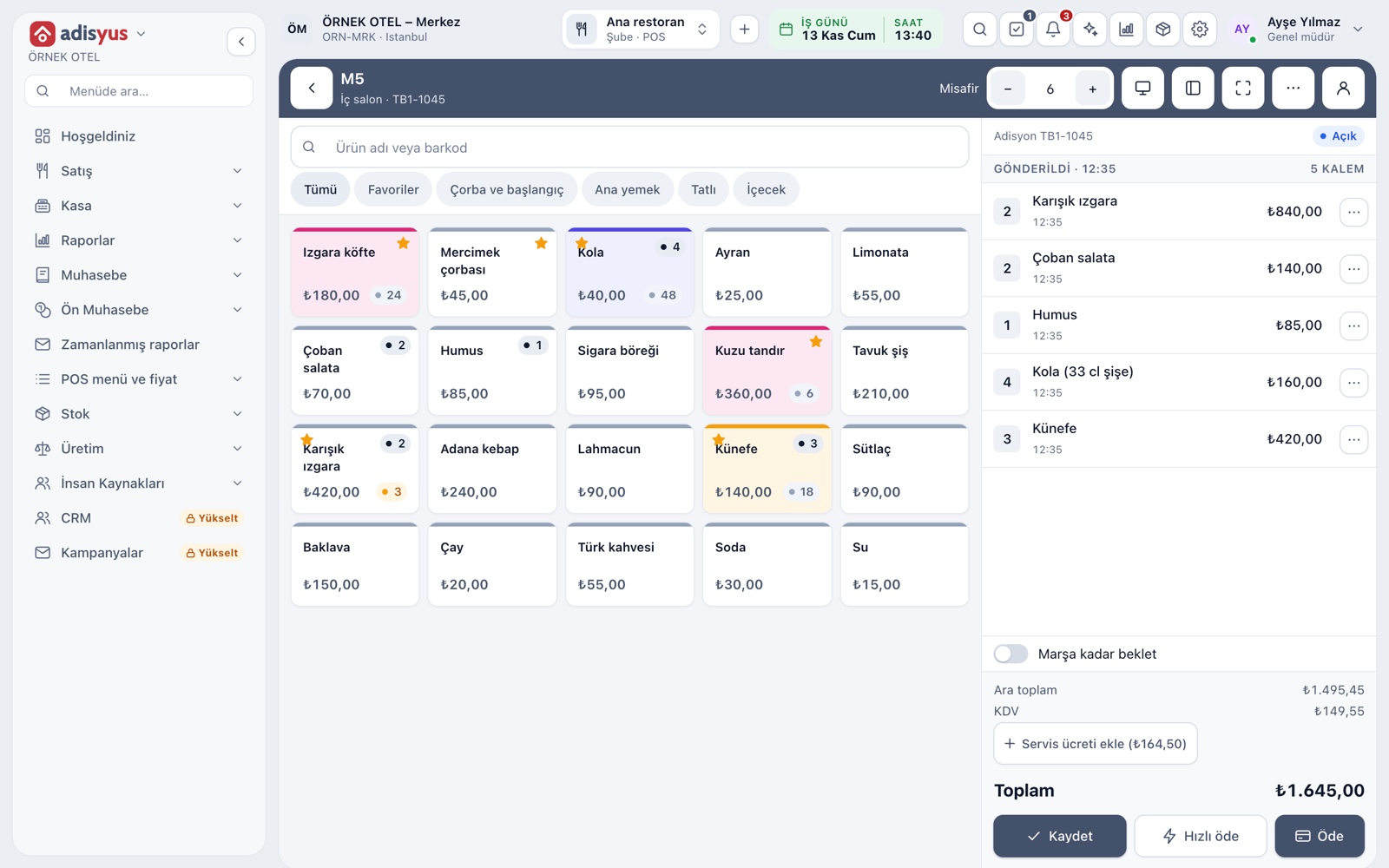
The order screen
The menu is on the left and the check is on the right. The menu has a search box for item name or barcode, category buttons and favorites. The check side groups lines by send time and calculates subtotal, VAT, service charge and total live.
- Save writes new lines to the check and sends them to the kitchen.
- Quick pay collects the balance with the default payment type in one tap.
- A sold-out item is closed for sale and shows as closed on its tile.
- A USB or Bluetooth barcode reader works directly.
Portions and options
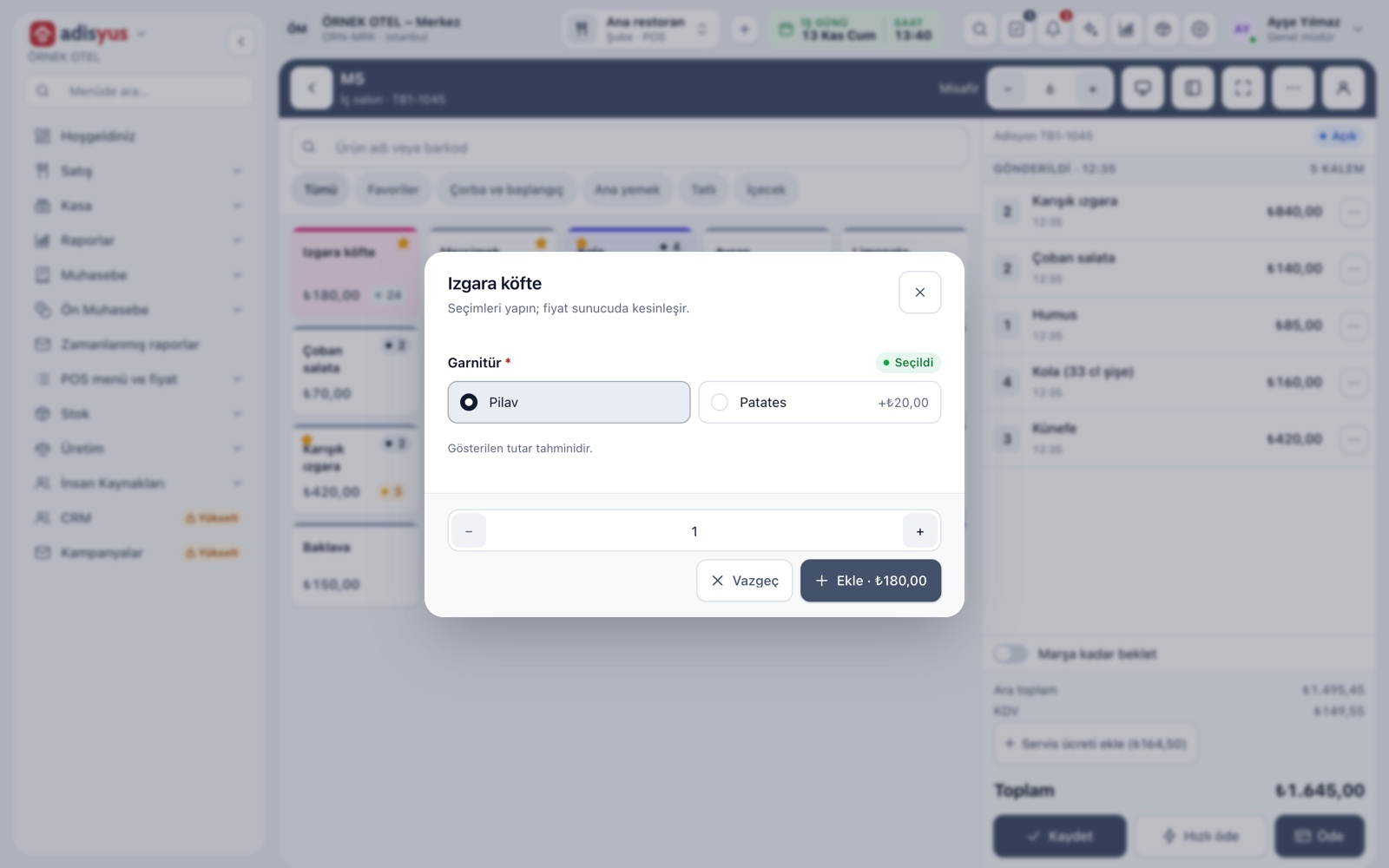
Tapping an item with portions or options opens a choice dialog. Single choices such as a side dish, multiple choices such as extras, and minimum-selection rules apply here; in a required group the item cannot be added until a choice is made. The option's extra price is shown.
- Item note and quantity are entered in the same dialog.
- A default selected option can be defined.
- Options appear under the item on the kitchen display.
Sending to the kitchen and course firing
Save routes new lines to the item's prep station. Every send becomes its own time-stamped group on the check. Hold until fired keeps lines back and releases them to the kitchen when it is time to serve that course.
- Sent lines and unsent lines are marked differently.
- The screen warns you when you try to leave with unsaved lines.
- If the connection drops, the unsaved cart can be restored.
Remove, cancel, comp, waste
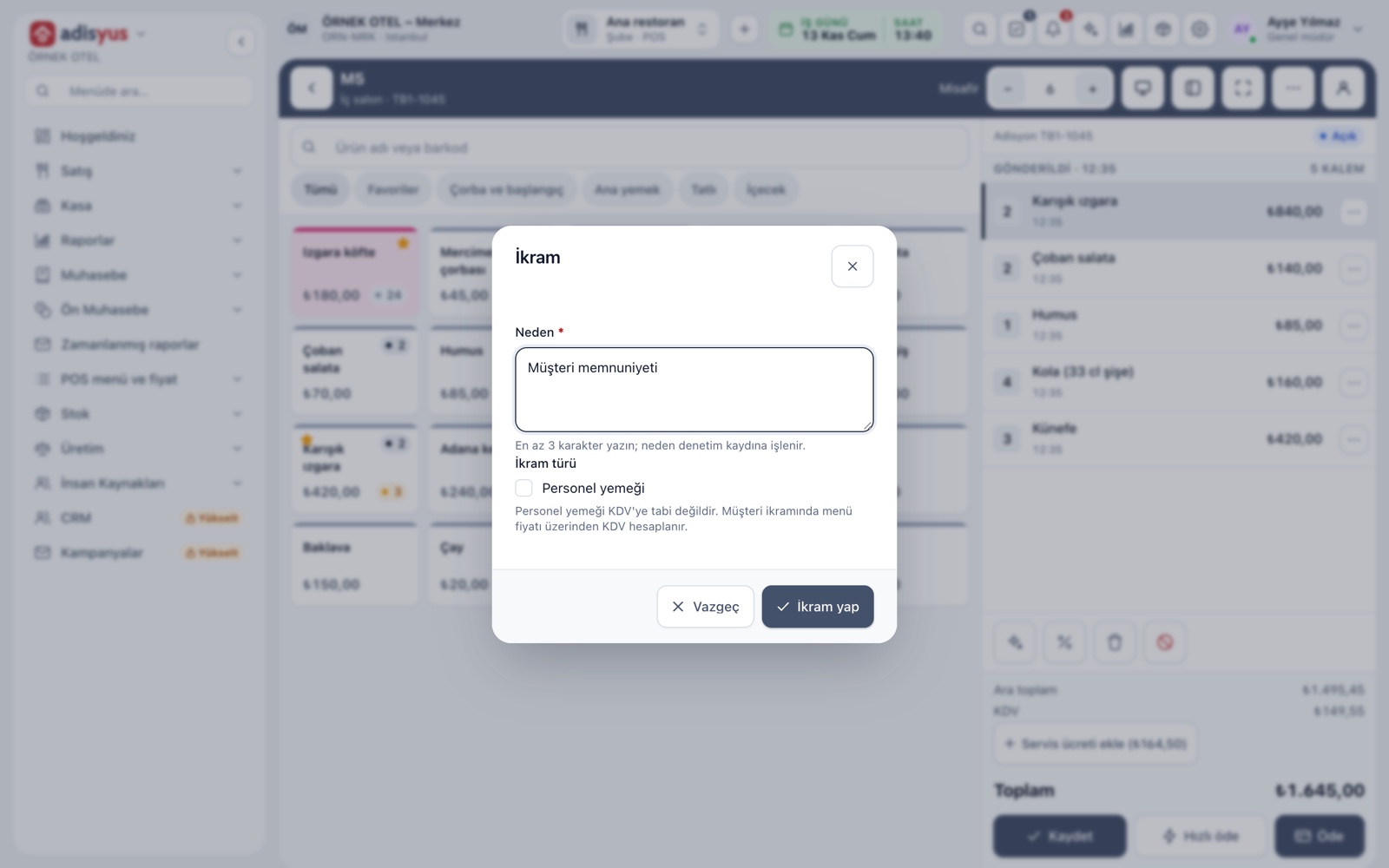
What you can do to each line depends on permissions. A line that has not gone to the kitchen is simply removed. Cancelling a sent line asks for a reason and notifies the kitchen. A comp is classed as a guest comp or staff meal; a prepared item is written off as waste. A percentage or amount discount can also be applied to the check.
- Cancelling and comping both require a written reason.
- A cancel record remains instead of deletion; the check history is preserved.
- Multi-select lets you move, split off or discount several lines together.
Splitting the bill
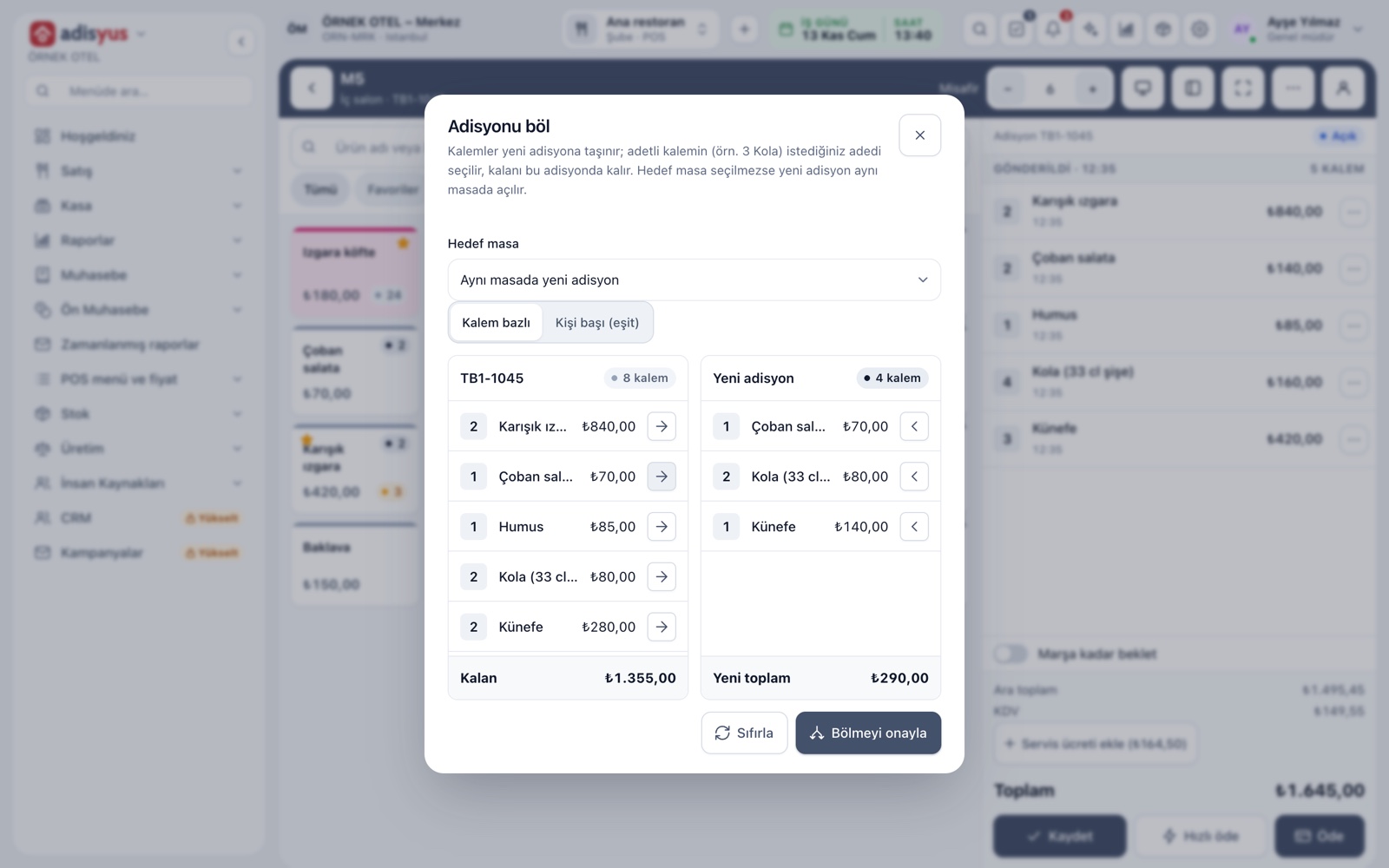
When everyone at the table wants to pay separately, the check is split. Lines move to a new check; for a multi-quantity item you pick the quantity and the rest stays on the old check. Equal per-person splitting is available too.
- Item-based splitting and equal per-person sharing are two separate tabs.
- If you pick no target table, the new check opens on the same table.
- The new check number is shown on screen after a split.
Moving and merging
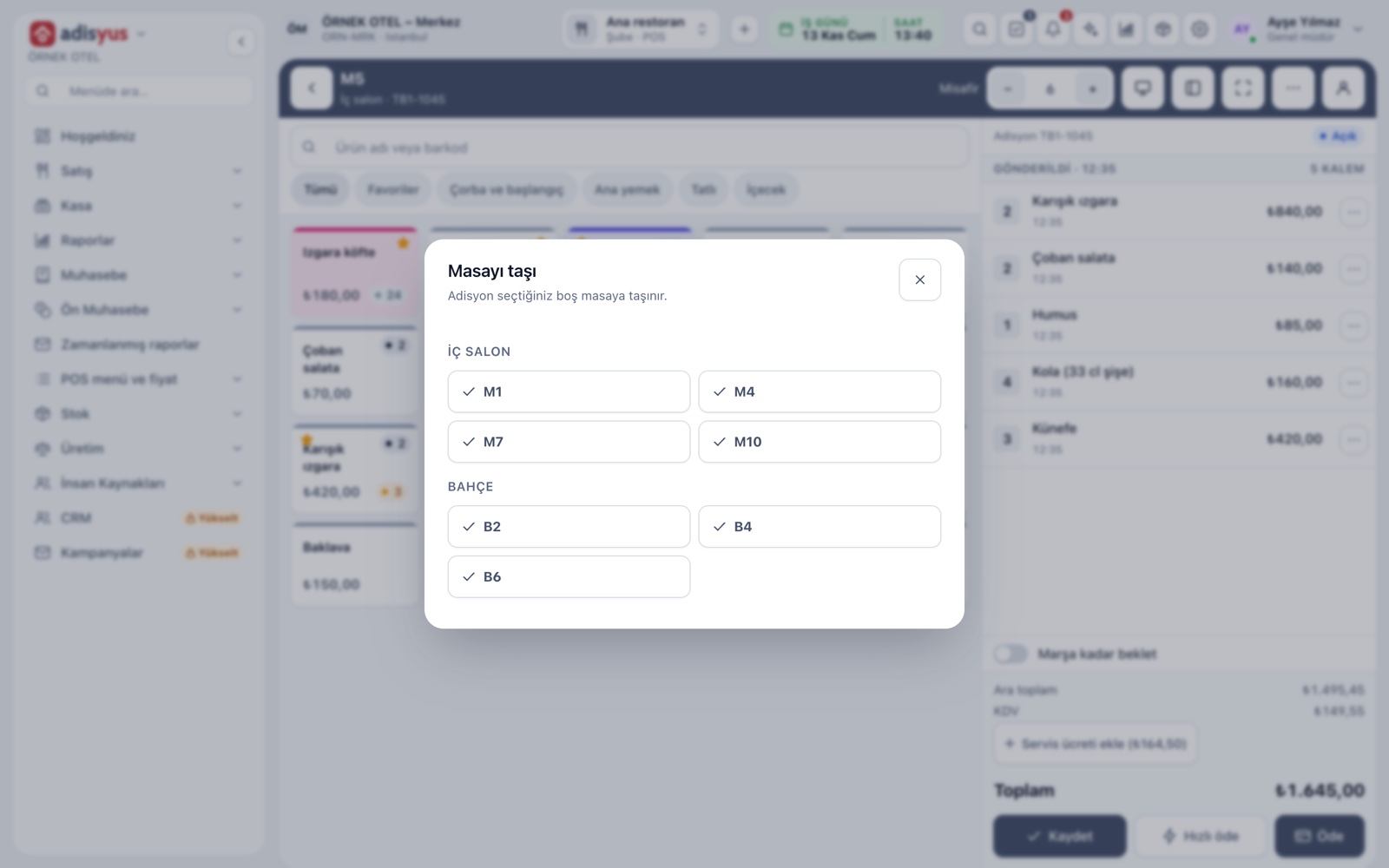
The whole check moves to the empty table you select; two occupied tables can be merged into one check when needed. Merging is only allowed between checks of the same department. Every action is written to the check history with user and time.
- Moving a table lists the empty tables zone by zone.
- Moving, merging and splitting depend on the move permission.
All checks and check history
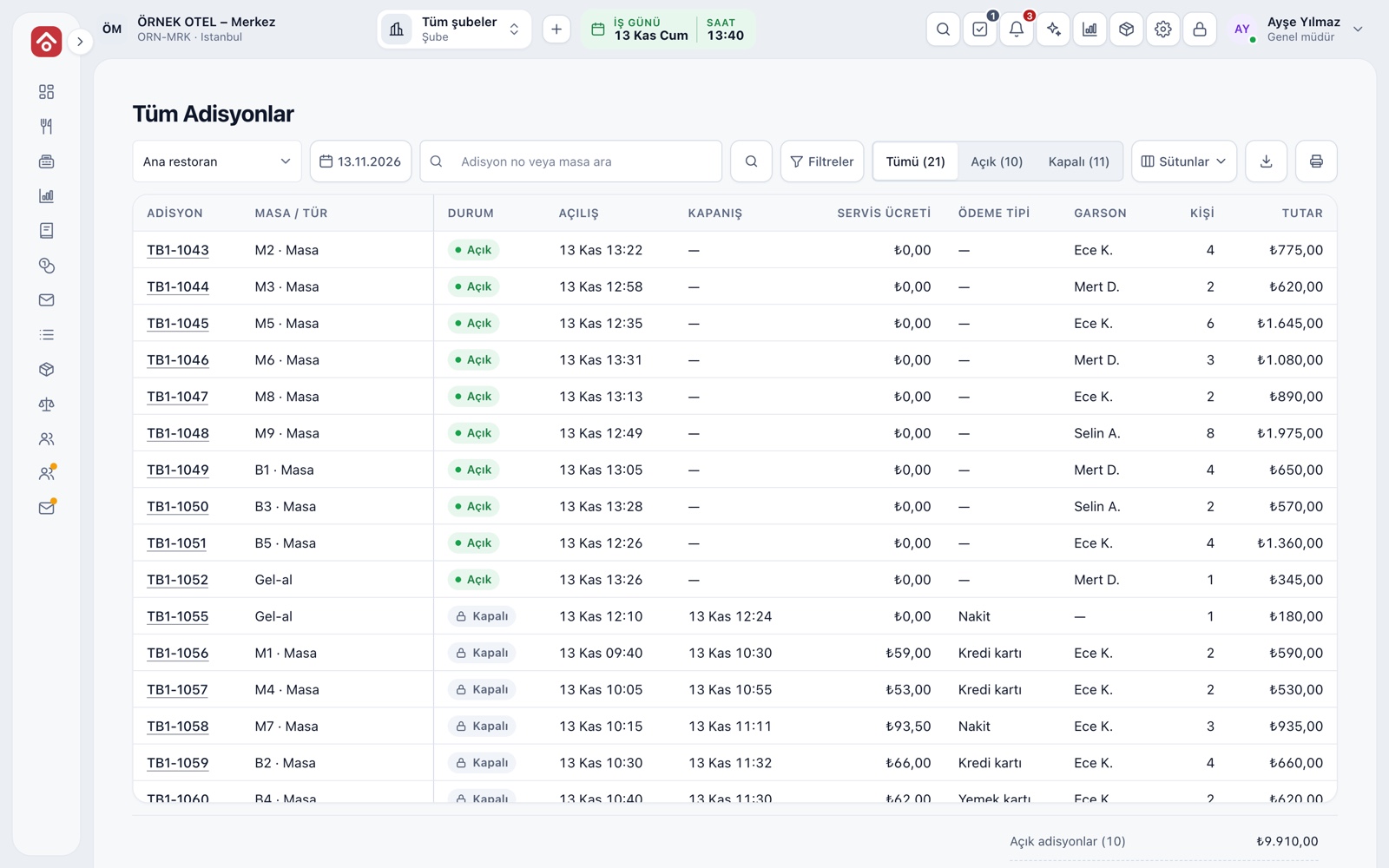
All Checks gathers the checks of the selected business day in one list. It filters by POS outlet, day and open or closed state, and searches by check number or table. Opening a check lets you read its event history line by line: who added, cancelled or paid, and when.
- Open and closed check totals are given under the list.
- An authorized user reopens a closed check with a reason.
- A check from a day that has been closed cannot be reopened.
Modules used together
Restaurant POS
Check, table plan, cashier and end of day
Learn moreTable Plan and Zones
Freely editable floor plan, zone tabs, table statuses
Learn moreKitchen Display and Kitchen Groups
Station-based kitchen display (KDS) and preparation times
Learn moreDiscounts and Comps
Predefined discounts and non-payable (comp) bills
Learn moreModifiers and Option Groups
Single/multiple choice, extras and removed-ingredient groups
Learn moreFrequently Asked Questions
Can I delete an item I already sent to the kitchen?
A sent line is not deleted, it is cancelled. Cancelling asks for a reason, needs an authorized user and notifies the kitchen; the record stays in the check history. A line that has not been sent can be removed directly.
How is the VAT of a comp calculated?
The comp type is chosen as guest comp or staff meal, and the VAT base of a comp is set in the POS settings. For VAT treatment, verify the current regulation with your accountant.
What happens if two servers change the same check at the same time?
The later action stops with a conflict notice. You can refresh the check and reapply the last action, or just refresh. No line is silently overwritten.
Can I reopen a closed check?
With the permission, you can reopen it from All Checks by writing a reason. Payment, cash and stock records are not deleted. A check from a closed business day cannot be reopened.
Meet Checks and Order Entry
Let us call you for a live walkthrough, or try it free for 1 month.