
Printers and Receipt Design
Kitchen, bar and cashier receipts come out of the right printer. You set up your printers, route documents with rules and design the receipt layout yourself.
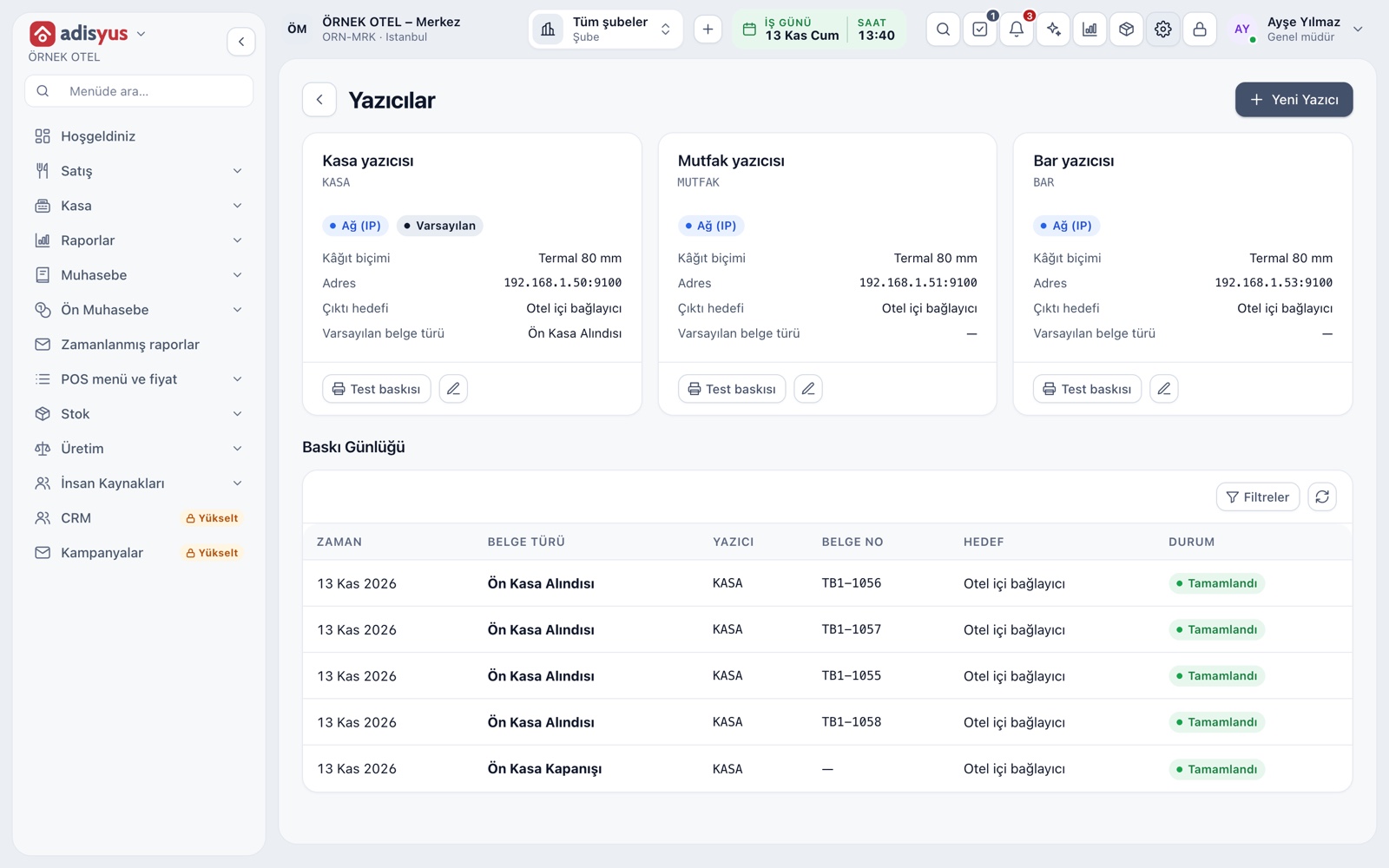
Set up your printers
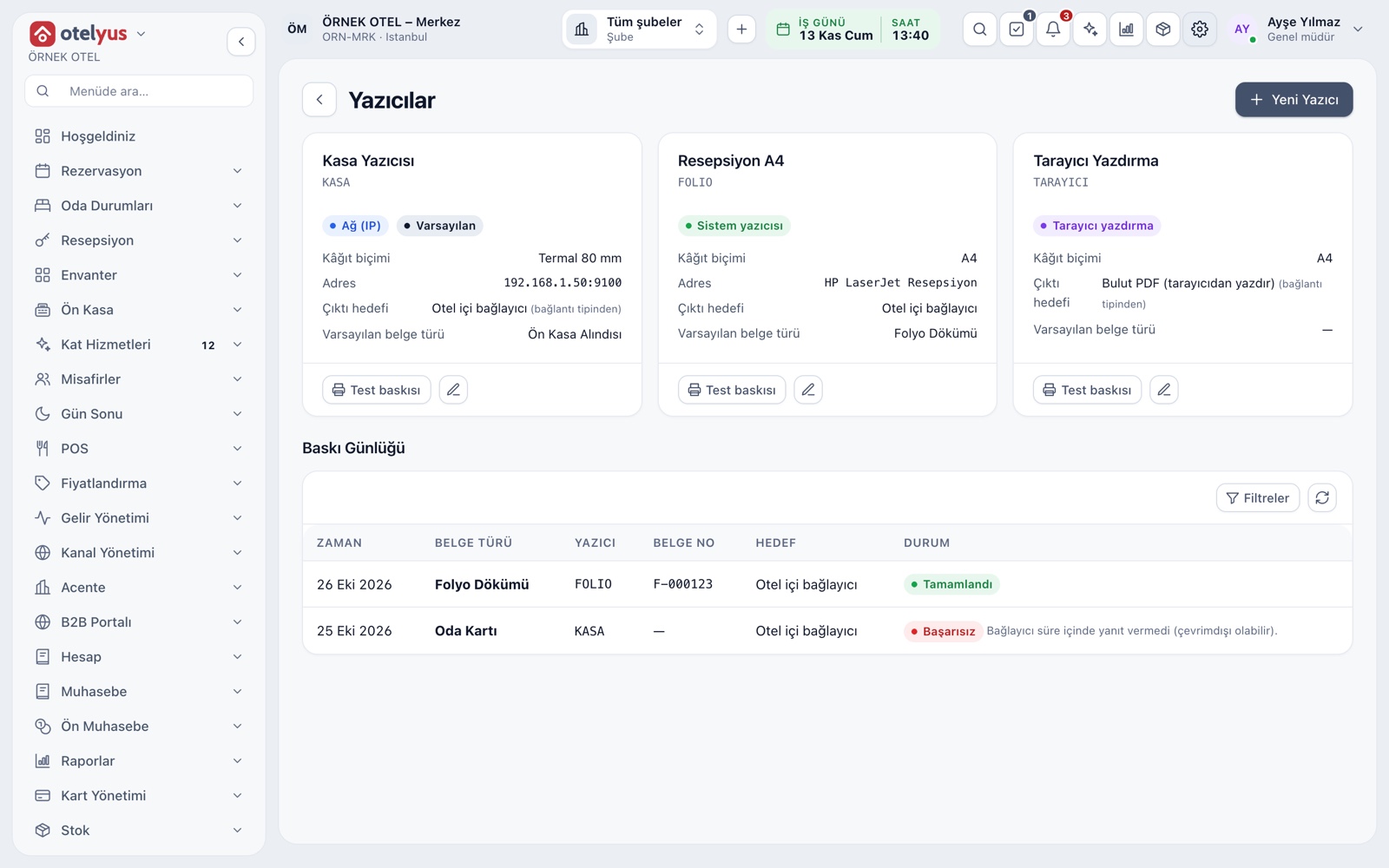
Printers are listed as cards under Settings > POS > Printers. Give each one a name, a role and a paper format. The role decides which documents it prints: cashier receipt, kitchen or bar order, courier slip and so on. Every card lets you print a test page.
- Roles: check and cashier receipt, kitchen, bar, courier, A4 document, label
- Paper: thermal 58 mm, thermal 80 mm, A4 or label
- Auto-cutter and cash drawer are marked per printer
- An unused printer is set inactive instead of deleted
Connecting through the desktop app
The Desktop app, installed on a computer at your business, connects network, USB and system printers to the panel and passes the print job along. Without the app, the document opens as a PDF and prints from the browser's print window.
- Printer status shows online, offline, out of paper or error
- A failed print is logged together with its cause
- Browser and cloud printers are defined from the panel
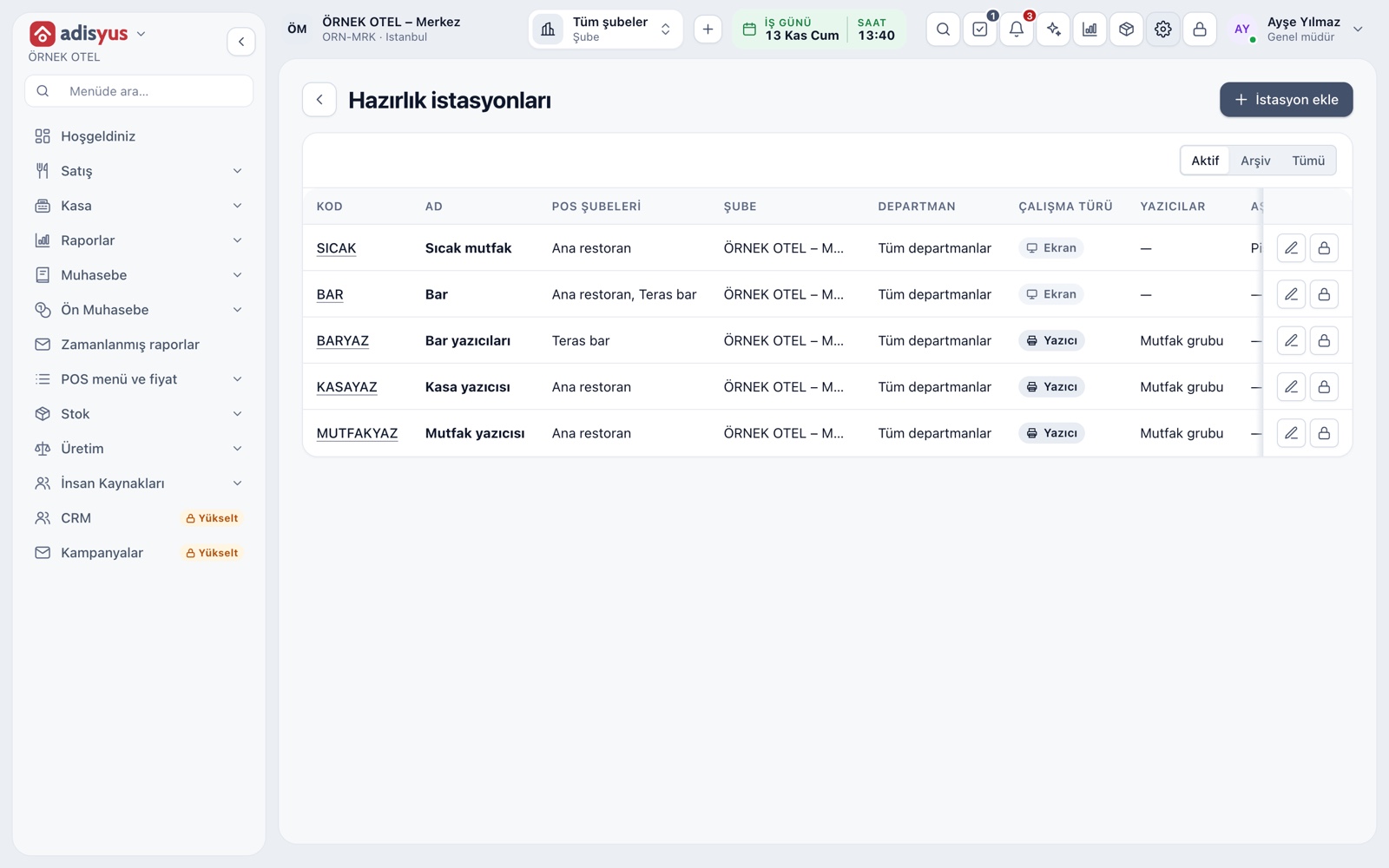
Kitchen, bar and cashier tickets kept apart
Each prep station works as a screen, a printer or both. A station tied to a product category splits the items on a check into separate tickets: soup goes to the hot kitchen, drinks to the bar. The receipt setup wizard links a printer to a station in one step, and no rule is created until you confirm.
- A void ticket can come out of the same printer as the original
- Check, payment, cash close and end-of-day receipts get their own printer
- One station can use several printers
Rules, backup printer and queue
Rules send each document to the right printer, looking at order type, category, branch or sales channel. Group several printers together and a backup takes over if the main one fails. A ticket that cannot print waits in a queue and is retried.
- Set which event prints how many copies
- Sending to the kitchen, a pre-bill and payment can all be events
- An expired kitchen ticket is not printed; a notice is sent
- A summary prints at cash close and at end of day
Design the receipt yourself
In the Receipt Design tab you pick the document type and paper, then build the receipt from sections. Order header, items, VAT breakdown, totals, QR code and signature line can be reordered, shown or hidden. Add your logo and a footer note.
- Preview runs on sample data
- The current version stays in use until you publish a draft
- Document language: Turkish, English, German or Russian
- The same logo is used on all documents
Print history and reprints
Print history lists every job with time, document type, printer and status. A failed job is retried on the same printer or sent to another. The original print and a reprint are marked differently.
- Filter by document type, printer, status and date
- Servers and cashiers print; reprinting belongs to cashiers and managers
- The number of attempts shows on every job
Modules used together
Kitchen Display and Kitchen Groups
Station-based kitchen display (KDS) and preparation times
Learn moreChecks and Order Entry
Item entry, options, comps, split and merge bills
Learn morePayments and Collections
Cash, card and split payments; fiscal cash register (ÖKC) integration
Learn moreRestaurant Settings
Business day start/end, notifications, display and general settings
Learn morePOS Reports
Product sales, end of day, shift, statistics, stock status and waste reports
Learn moreFrequently Asked Questions
Can I add a printer straight from the browser?
Network, USB and system printers are added through the Desktop app. Without it, the document opens as a PDF and prints from the browser.
Can I design the receipt the way I want?
You can reorder and hide sections and add a logo and footer. Free-form code is not accepted, which keeps output consistent on every printer.
What happens if a kitchen ticket fails to print?
It waits in a queue and is retried. If it expires, a notice is sent and the stale ticket is not printed; you can retry from print history.
Is a pre-bill or payment receipt a fiscal document?
No, these are POS printouts. Fiscal documents such as cash register receipts or e-Archive are produced separately; confirm what you need with your accountant.
If I only use adisyus, do I need the hotel module?
No. Printers are managed under Settings > POS. If you also use the hotel side, the same printers can be chosen for hotel documents.
Meet Printers and Receipt Design
Let us call you for a live walkthrough, or try it free for 1 month.