
POS Reports
End-of-day, shift, item sales, server, payment type, cancel-comp-waste and discount reports open on one screen as tabs; stock status and waste records are in the Stock section.
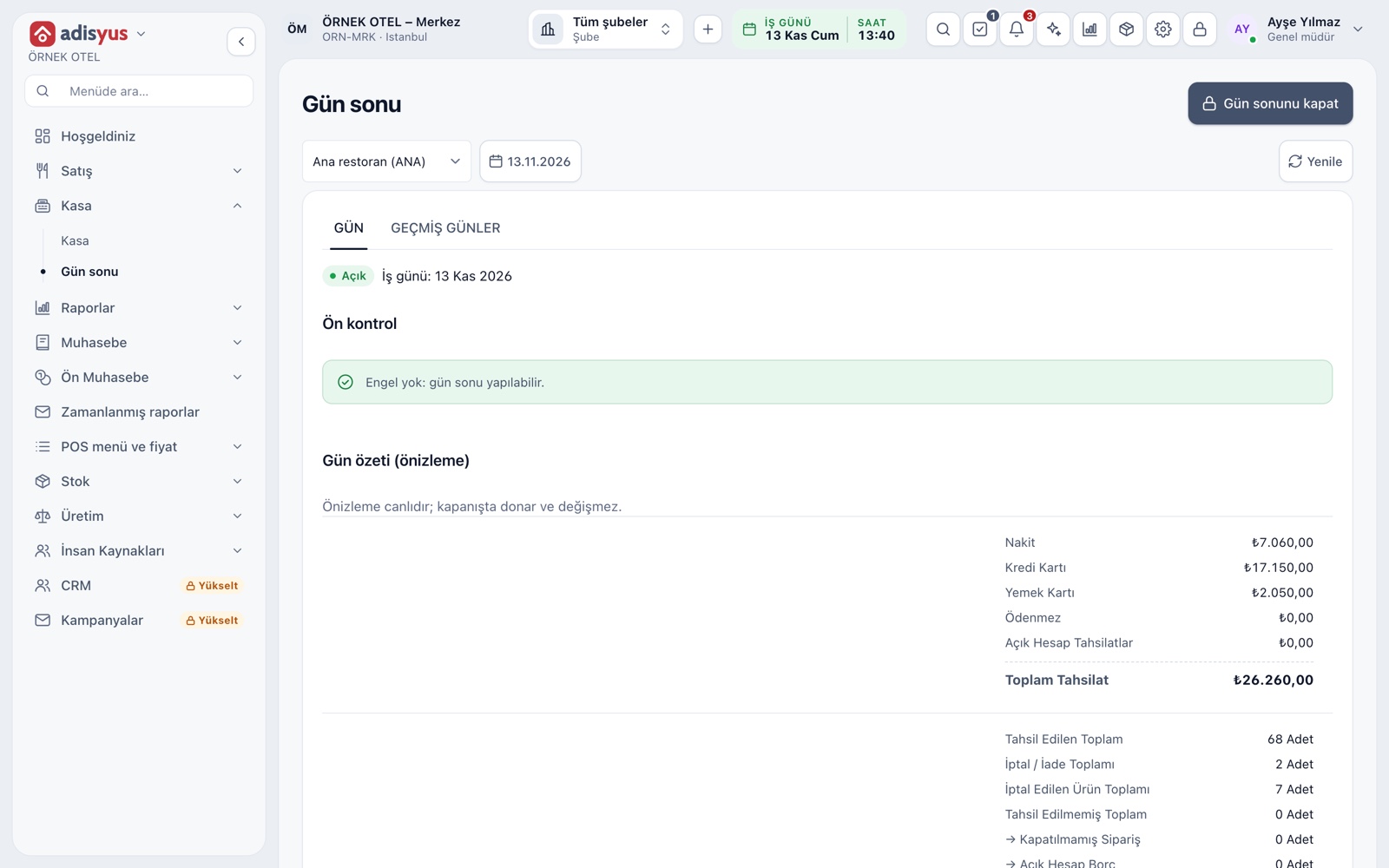
The end-of-day report
The end-of-day screen runs a pre-check before closing the business day and previews the day's summary live; at closing the summary freezes and no longer changes. The summary gives collections by payment type, cancel and refund totals, discounts given and unclosed checks. The report prints as a slip or on A4.
- The pre-check looks at open checks, open till sessions and unresolved card transactions.
- Sales by VAT rate, tips held and the till count difference are part of the summary.
- Payment types corrected after closing are listed apart with the reason.
The shift and till report
Per till session you read the opening balance, cash in and out, expected cash, counted cash and the difference on a single row. A cashier sees their own session and a manager sees all tills. A cash correction made after closing is marked separately.
- Expected cash is the system's figure, counted cash is the cashier's count.
- A non-zero difference carries to the day summary as the till count difference.
The item sales report
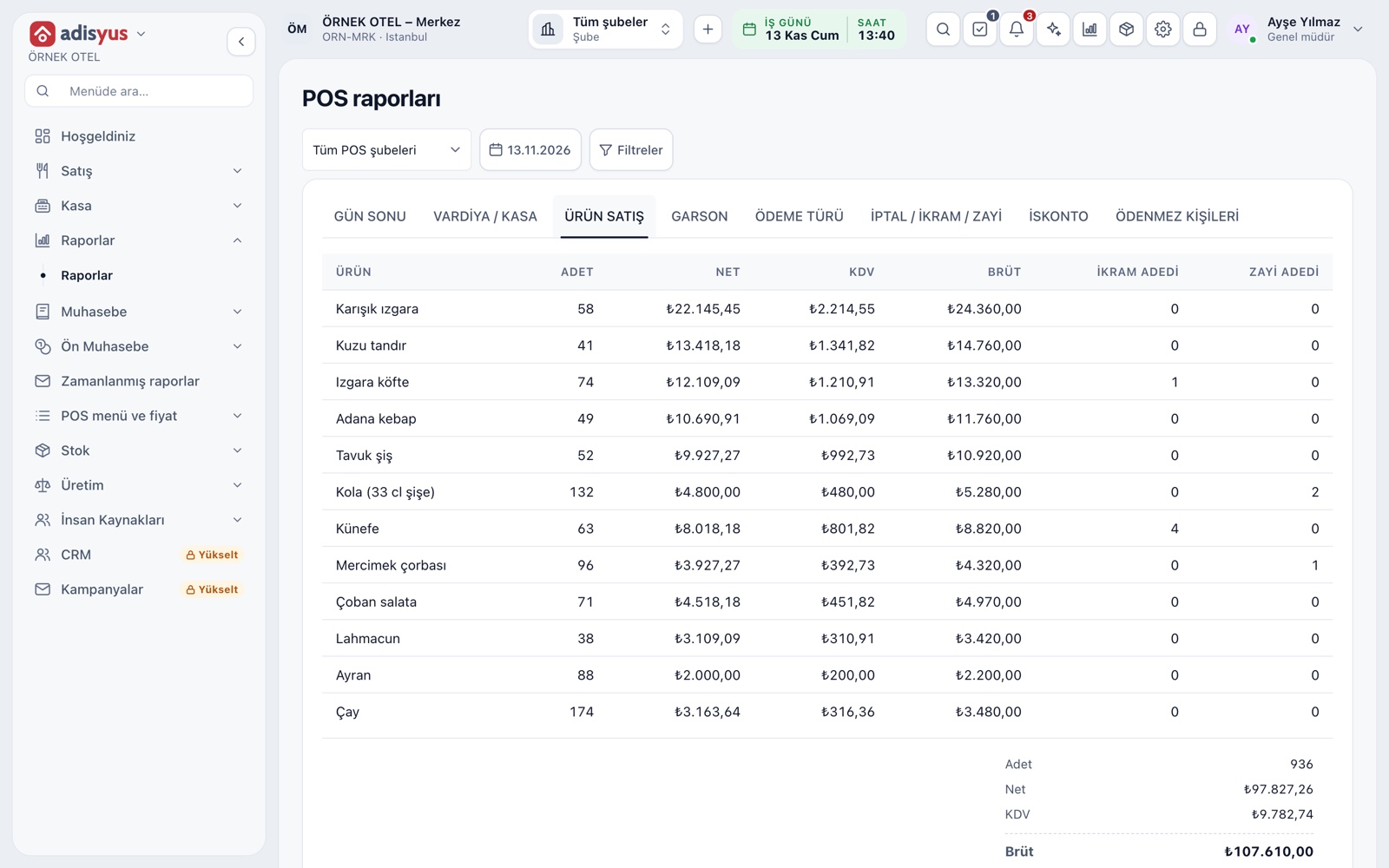
Every item sold in the selected range is listed with quantity, net, VAT and gross amounts, with comp and waste quantity alongside. You read in one row which item carries the revenue and which is often comped or wasted.
- Reports filter by POS outlet, date and time range.
- All POS outlets can be selected together.
- Comp and waste quantity is counted apart from quantity sold.
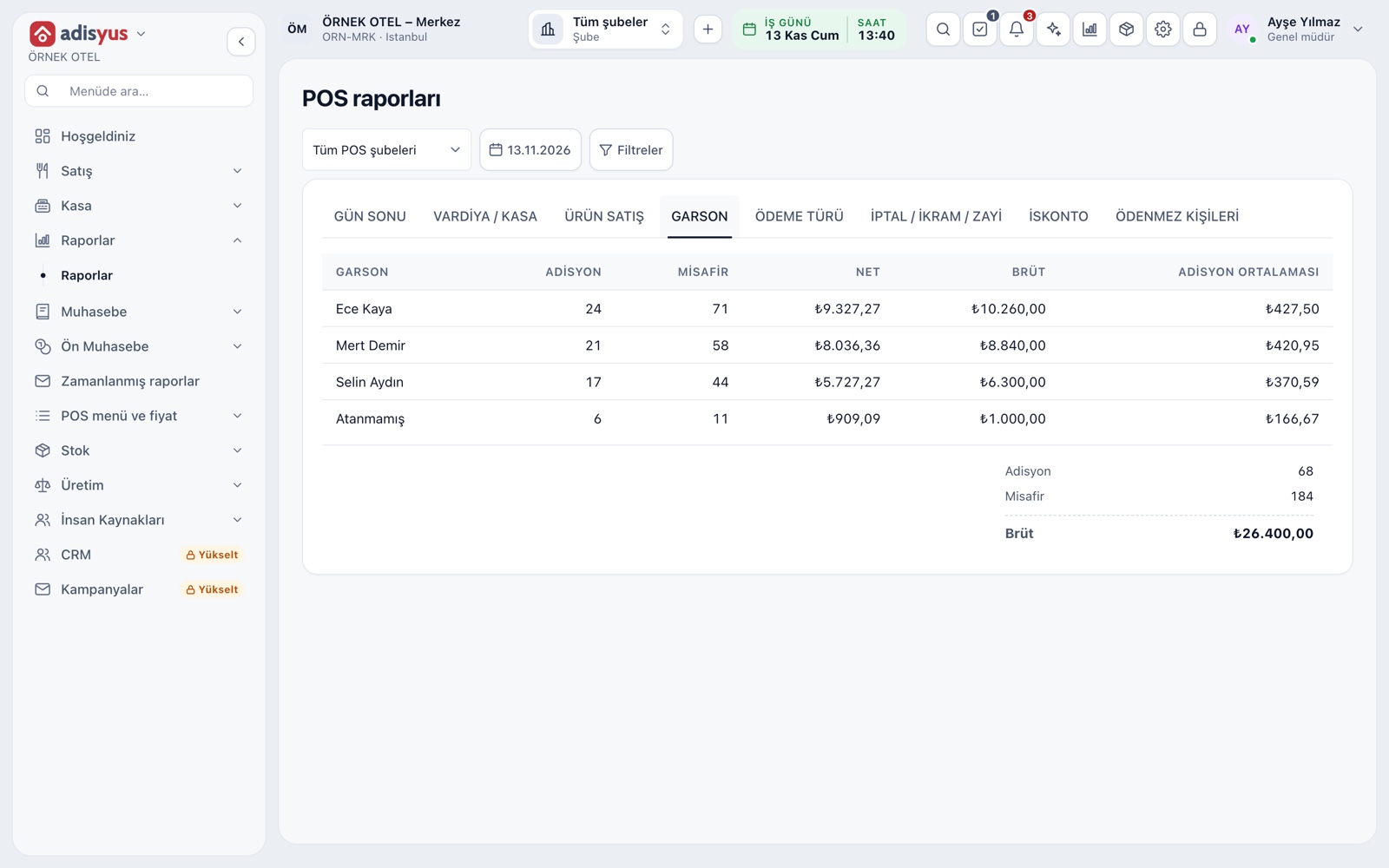
The server report
Closed checks are totalled per server: number of checks, guests, net and gross amount, and average check. Checks not assigned to a server appear on a separate row. The average check is a quick efficiency indicator.
- If guest count is entered as male, female and child, the breakdown shows.
- The server role does not reach POS reports; revenue figures sit with managers.
Payment type, cancel, comp, waste and discount
The payment type report gives collection, tips and refunds by type. The cancel, comp and waste report lists each record with type, line, amount, reason, authorizer and time. The discount report separates manual and SMS-coded discounts. The non-paying persons report combines sales by person.
- Every exception shows with its reason and authorized user.
- Clicking a row opens the lines of the check.
- The non-paying report downloads as CSV or Excel.
All checks and history
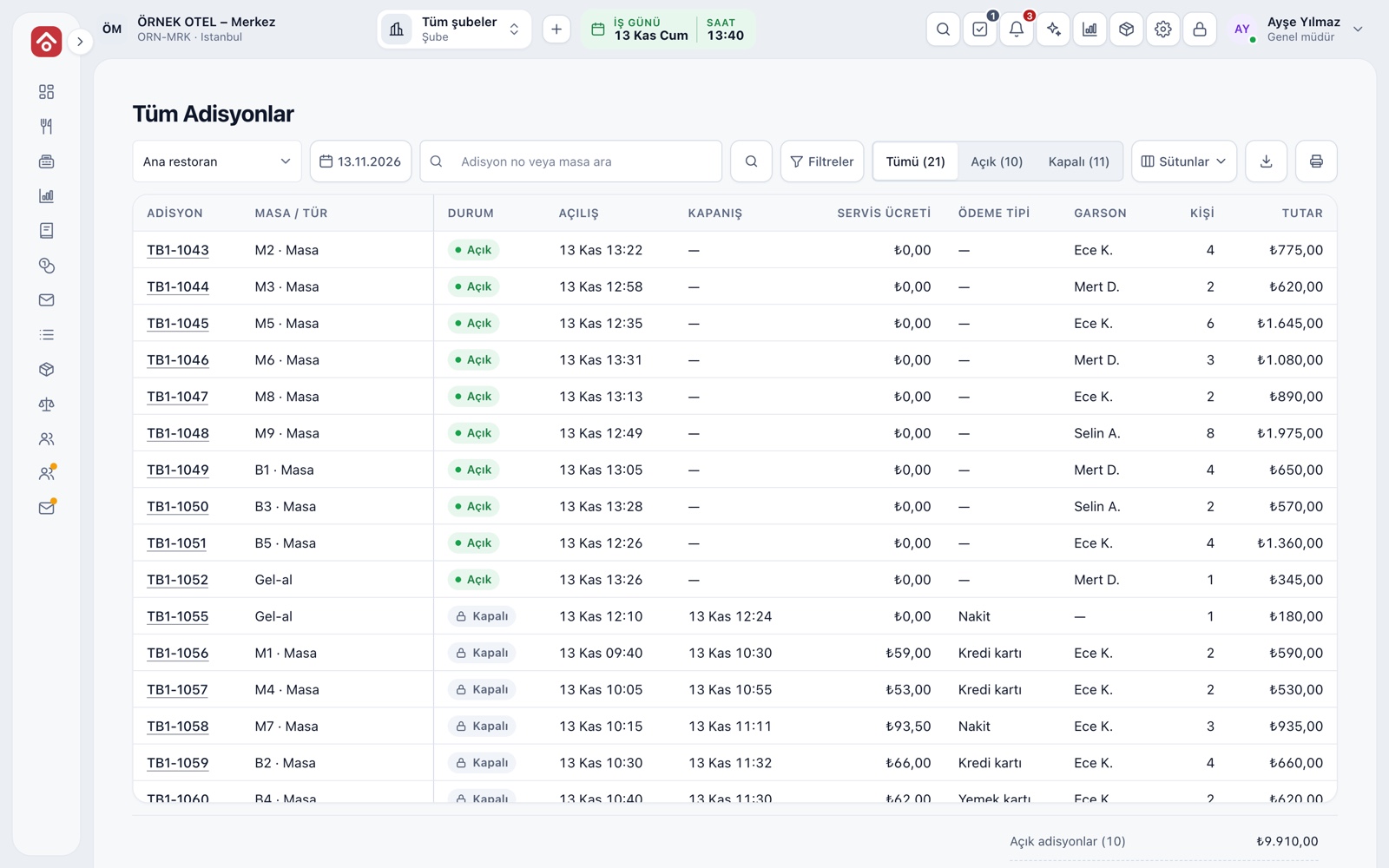
The All Checks list gives the open and closed checks of the selected business day in one table: number, table and type, status, open and close time, service charge, payment type, server and amount. Clicking a check opens its line and event history as a timeline.
- The All, Open and Closed tabs count checks separately.
- Reopening a closed check needs permission and a reason.
- The list can be downloaded or printed.
Home screen indicators
You see the pulse of the day on the home screen without opening reports: daily sales (gross, refunds, net), best sellers, open check count and amount, till status, tickets waiting in the kitchen, today's expenses and hourly sales. Each indicator links to the matching report.
- The daily sales indicator filters by POS outlet.
- The open check indicator says how many minutes the oldest check has been open.
- You arrange the indicator layout on your own home screen.
Modules used together
Payments and Collections
Cash, card and split payments; fiscal cash register (ÖKC) integration
Learn moreWaste and Spoilage
Waste reasons, responsible staff and cost impact
Learn moreCost and Profitability Analysis
Product and menu profitability, report wizard
Learn moreDiscounts and Comps
Predefined discounts and non-payable (comp) bills
Learn moreUsers and Permissions
Waiter, kitchen, cashier and manager roles with a permission matrix
Learn moreFrequently Asked Questions
Which reports can a cashier see?
A cashier sees only their own shift and till report. The end-of-day report and other tabs need manager permission.
Can I export reports?
The non-paying persons report downloads as CSV or Excel, and the All Checks list with its download button. The end-of-day report prints.
How are comps and waste separated in reports?
In the cancel, comp and waste tab each record is listed with its type, reason, authorizer and time; in the item report, comp and waste quantity are in separate columns.
Can I get the reports of several outlets together?
Yes. Choose All POS outlets in the outlet picker. The end-of-day report is for a single POS outlet and business day.
Meet POS Reports
Let us call you for a live walkthrough, or try it free for 1 month.