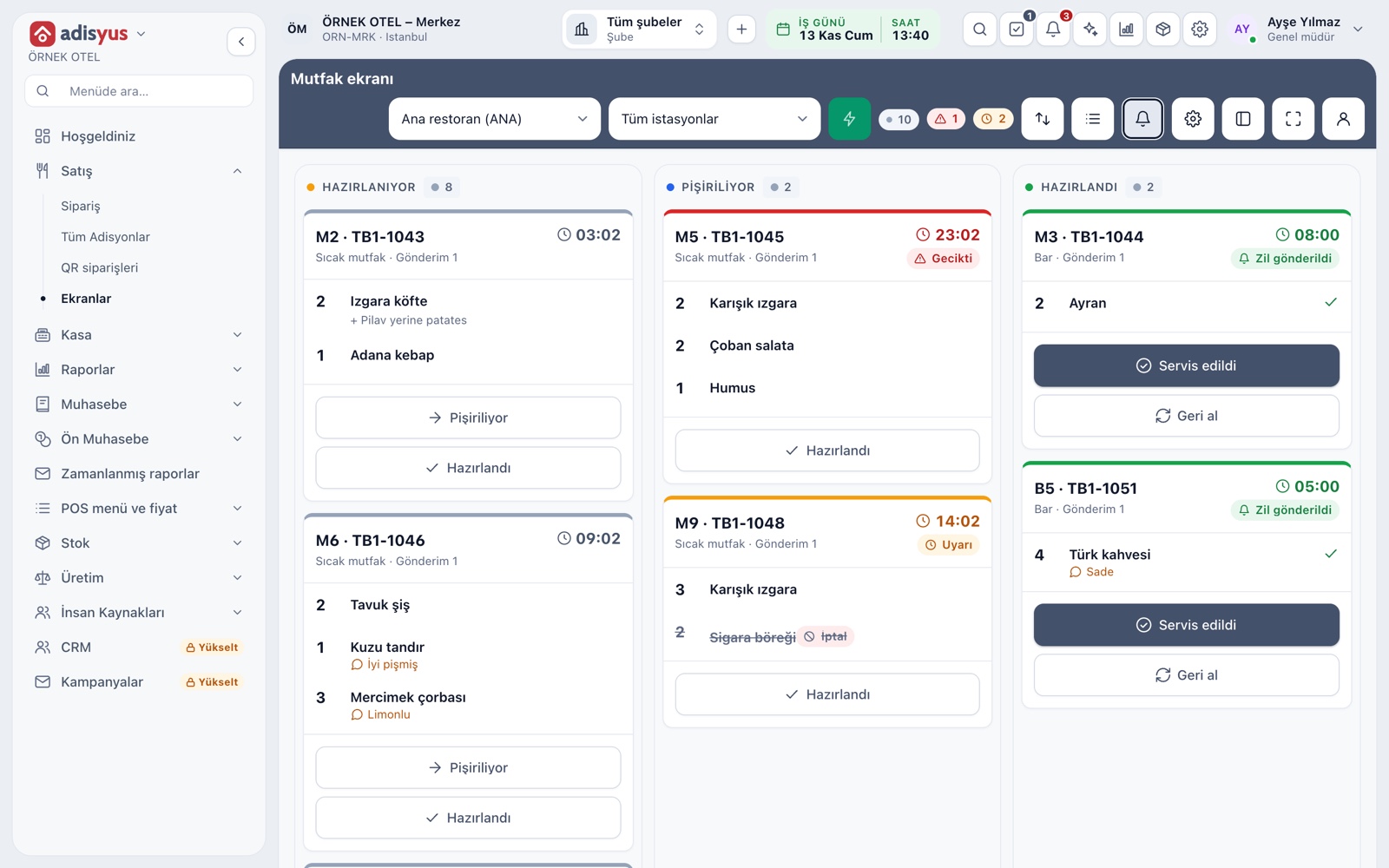
A kitchen display system (KDS) shows the order the waiter enters on a screen in the kitchen. It replaces the paper ticket, but its real difference is that it says what paper cannot: how long the order has been waiting, what stage it is at and whether it is ready. A large part of the communication between the floor and the kitchen is lost in the question "what happened to that order?", and a kitchen display moves that question onto the screen.
Paper tickets versus a kitchen display
| Topic | Paper ticket | Kitchen display |
|---|---|---|
| Order visibility | Prints out, can get lost or out of sequence | Stays on screen until the order is ready |
| Waiting time | Tracked by guesswork and by hand | A timer on every card; the colour changes past a threshold |
| Changes and cancellations | A new ticket and a spoken warning | The cancelled stage shows on the card |
| Ready notice | The waiter checks or shouts to the kitchen | The ready bell rings and the table status changes |
| Workload | Judged by looking at the pile of tickets | Counts of waiting, warning and late orders are summarised |
| Infrastructure | Printer, paper, ribbon | Screen or tablet, network, power |
Both methods have weak points. A paper ticket still works through a screen or network fault as long as the printer runs; a screen depends on the device and the connection. That is why it makes sense to run both side by side during the transition.
The building blocks of a kitchen display
- Preparation stations. Units that match your real layout, such as hot kitchen, cold kitchen and bar. For each station you can choose screen, printer or both.
- Routing. An item goes to the station of its category, with exceptions set at product level. One check can therefore be spread across several stations.
- Ticket stages. On hold, preparing, cooking, packing, ready. The cook moves the card forward with a touch.
- Time thresholds. A card past the warning time turns yellow and one past the critical time turns red. Thresholds are in minutes and set per POS outlet; a single screen can use different times if you wish.
- Consolidated items. The total quantity of each item across waiting orders is shown. Knowing "14 burgers are waiting right now" makes batch cooking easier to plan.
- Sounds and alerts. The new-order sound and the ready bell can be switched on and off separately.
Five practices that speed up floor-to-kitchen communication
1. Standardise notes. Define frequent requests such as "medium rare" or "no onion" as option groups instead of free text. The kitchen reads the same wording every time and waiters make no typing mistakes. Product options and notes appear on the card.
2. Decide who gives the fire command. With course firing, items stay "on hold" and are not prepared until fired. Unless it is written down whether the waiter or the chef fires, you get either early cooking or idle waiting.
3. Set realistic thresholds. Three minutes is long for a drink and short for the grill. Base thresholds on the real preparation time of your most ordered item; a threshold that is too short keeps the screen permanently red and nobody looks at the alert. Move slow items to their own station or give that screen its own times.
4. Make sure everyone hears the ready signal. Browsers keep sound off until the page is touched once, so put "enable sound" on the opening checklist for every time the screen is switched on. In a noisy kitchen a visual cue helps too.
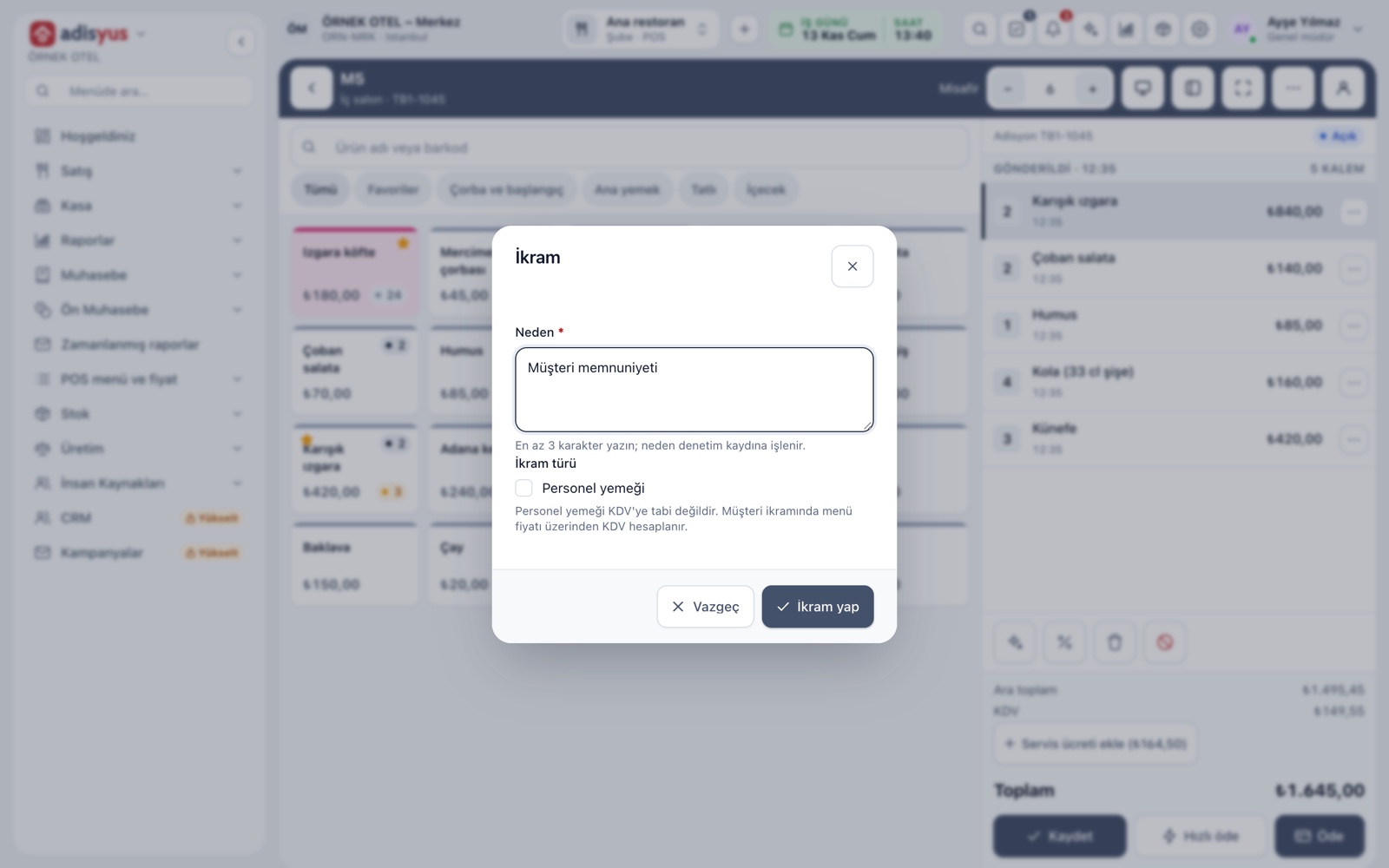
5. Confirm cancellations and changes. When a sent item is cancelled, a "cancelled" stage appears in the kitchen. In the first weeks, asking for a spoken confirmation as well prevents a prepared dish from going to waste.
Where does it make a difference?
For a small café with a single station, paper tickets are often enough. A kitchen display makes a clear difference when:
- The kitchen is split into several stations such as hot, cold and bar.
- Dine-in orders and delivery or takeaway orders come out of the same kitchen.
- You run multi-course tables with course firing.
- A pile of tickets builds up in busy hours and the order gets mixed up.
- You want to see delays before complaints arrive.
The screen is also an observation tool: observing at which hours how many orders turn yellow or red lets you base shift planning and station split on real data.
Setup in seven steps
- Split your kitchen into stations that follow its real layout.
- Link each category to a station and mark exception items separately.
- For each station choose screen, printer or both. "Both" gives a safe transition in the first weeks.
- Enter the warning and critical thresholds; the critical time must be longer than the warning time.
- Decide on course firing and the ready bell.
- Place the screen at eye level, protected from liquid and steam, and allow for it being touched with wet or greasy hands.
- Train the team with rehearsal orders: in a quiet hour, send ten or fifteen test orders and follow every stage together.
Common mistakes
- Removing paper in a single day. A screen stands alone in a failure. Do not switch the printer off right away.
- Piling every item onto one station. A bar order gets lost on the hot kitchen screen.
- Pressing "ready" at the wrong moment. If the cook says "ready" before the plate is out, the waiter runs for nothing; if they press it afterwards, the bell rings late. Set a single rule.
- Switching without training. However good the settings are, they are useless if the team does not read the screen.
- Not measuring. Compare the time from order to table in the same shift before and after the change.
Conclusion
A kitchen display creates value when you treat it not as a digital copy of paper but as a shared board that shows everyone the time and stage of an order. Setting up the stations correctly, choosing realistic thresholds and training the team decide the rest. For details on stations, thresholds and course firing, see Kitchen Display and Kitchen Groups.